Workspace tabs
The Workspace is a browser whose tabs are not all web pages. Each tab belongs to a project — or to the personal browser, which is a project in every respect but the one that matters — and its kind decides what chrome makes sense around it.
| Kind | What it is | Address bar & bookmarks |
|---|---|---|
web | An ordinary page | shown |
editor | code-server, one instance per project root | hidden |
database | DbGate, one instance per project | hidden |
terminal | A login shell under a pty | hidden |
api | The API client | hidden |
cluster | A Kubernetes cluster browser | hidden |
docker | The project's containers | hidden |
chat | The project's Slack or Teams, on the web | hidden |
Browser chrome belongs to browser tabs: anything that is not a plain page hides the address bar and the bookmarks sidebar beside it, because nobody navigates an editor or a shell the way they navigate a website.
The browser
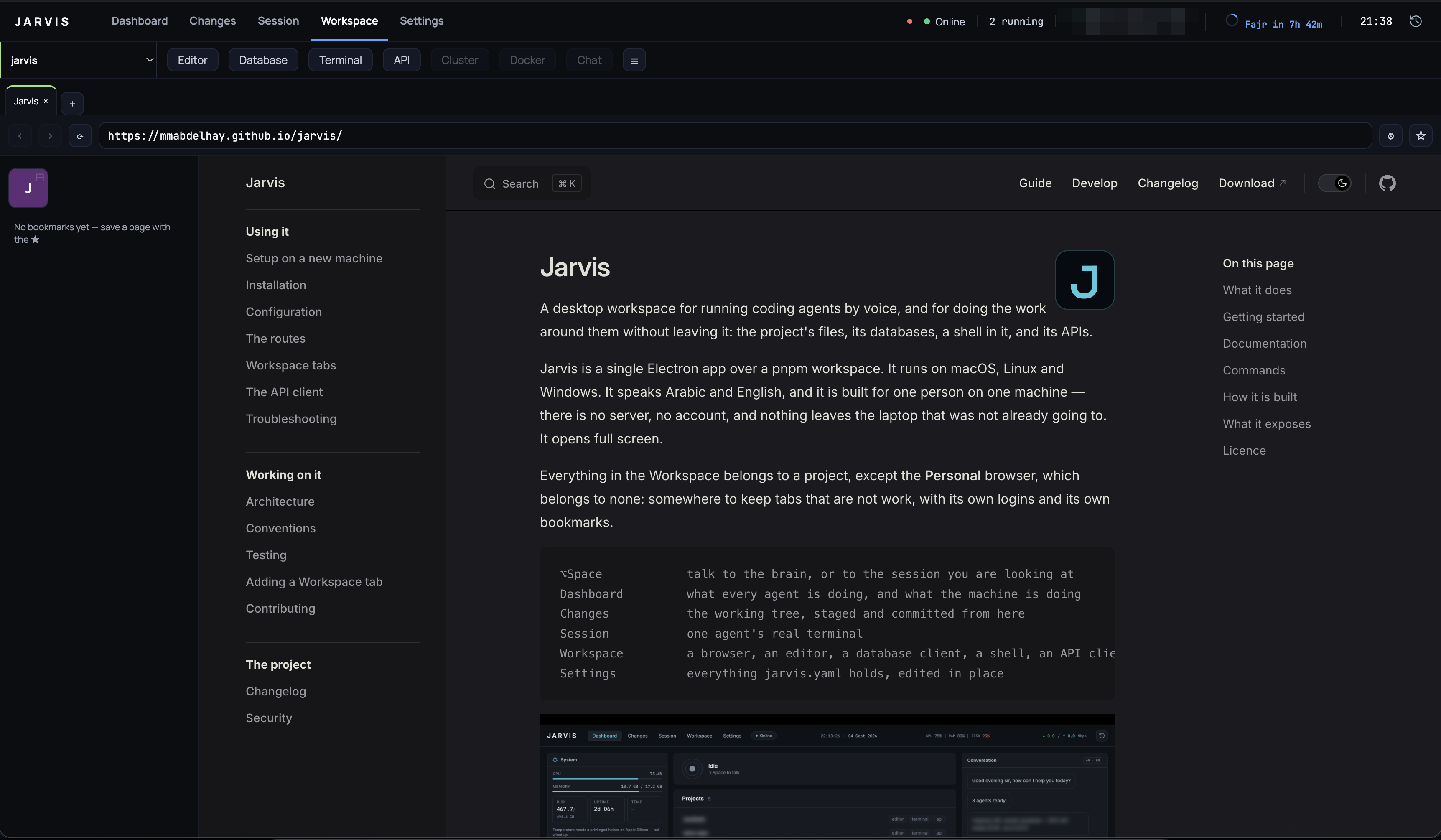
An address bar, back/forward/reload, and per-project bookmarks kept in ~/.config/jarvis/bookmarks.json. Clicking a bookmark the project already has open activates that tab rather than opening a second copy.
Bookmarks sit in a sidebar down the left of the Workspace, in two parts. The essentials are up to twelve pinned bookmarks shown as a grid of icons — the handful you open daily, reachable without reading. Everything else is listed below them, each row showing its icon too, then its title.
Pin a bookmark with the ⊞ on its row, or by dragging it from the list into the grid; take one back out with the ⊟ in the corner of its tile, or by dragging it down into the list. Drag within either group to reorder. A thirteenth pin is refused rather than pushing one out: the grid is a fixed twelve.
Icons come from the site itself. Jarvis keeps the favicon Chromium resolved when you last visited a page, and for a bookmark you have never opened it asks that site for its own icon, trying again every few days if it has none — never a third-party icon service, so no list of the sites you bookmark ever leaves your machine. A site with no icon gets a coloured tile bearing the first letter of its title.
The sidebar is a fixed width beside the hosted page, not a resizable split — its width is the page's left inset. ☰ collapses it out of the way.
⚙ opens DevTools for the current page — the real DevTools front end, network and application panels included, rendered into a panel you can drag to size rather than a detached window.
▣ floats the page's video in a small always-on-top window — the "play popup". It appears only while the page actually has a video playing, so it is never a dead button; a second press puts the video back in the tab. The window is Chromium's own Picture-in-Picture window, so it stays above the Workspace, above Jarvis's other routes, and above other applications entirely. See the spike for why it is that window and not one of ours.
Tabs from other projects collapse into a counted, coloured pill; the selected project's tabs expand. Eight hosted pages is the cap — each is a Chromium process — and terminal and API tabs are exempt, since they are neither.
Tabs you are not looking at
A hosted page is 80–150 MB of Chromium, and the eight-tab cap only fires when you open a ninth. A tab left alone for fifteen minutes therefore gives its renderer back: the tab keeps its place in the strip, its title and its address, and clicking it builds the page again. What you see is a reload.
Two tabs are never given back. The one you are looking at, and one whose page is playing video — the tab you left playing is the last one anybody meant to reclaim.
A hosted app is more than its address, so resuming one is not just a reload. Its sidecar may have been stopped underneath it (below) and come back on a different port, so Jarvis asks the manager where it went and loads that. A Cluster tab resumes without ever starting an AWS login: a resume happens because Jarvis reclaimed memory, not because you asked to sign in, and a login is a real saml2aws and an MFA push to your phone. If the session has expired the page says so and the Cluster button is right there.
The sidecars stop too. A code-server, dbgate-serve or headlamp-server that no open, unsuspended tab still needs is stopped after ten minutes — code-server alone is 150–250 MB — and started again the next time something opens it. Nothing about a running instance is state you own, which is what makes stopping it safe.
Both timings are performance: in jarvis.yaml, and 0 turns either off.
Personal — the browser that belongs to no project
The last entry in the project selector is Personal: somewhere to keep tabs that are not work. Its tabs stay open, in place and logged in as the project selection changes around them, exactly as any other project's do — switching away collapses them into a counted pill, switching back finds them as they were.
It is a project as far as the tab strip, the tab store, the bookmark file and the cookie jar are concerned. The one thing it does not have is a directory on disk, and everything follows from that:
- Editor, Database, Terminal and API are disabled, with the reason shown beside them. There is no folder to edit, no cwd for a shell, and no collection tree to read.
- Cluster and Docker are disabled too, but for a different reason: Personal has no
clusters:entry and nodocker:entry, not because it has no directory. The reason shown beside each button says so — "No clusters configured for this project", "No containers configured for this project" — the same message any ordinary project gets when it declares none. - It never appears where "a project" means "a repo". The Changes view, git polling, session routing and the Dashboard's project list all resolve a project through
projects:injarvis.yaml, which it is deliberately absent from.jarvis.yamlis refused at load time if it tries to declare a project under the reserved name. - Its logins are its own. It gets its own persistent session partition, like every project, so a page opened by a work project cannot ride the accounts you are signed into here. The cost is signing in twice where you use the same site for both, which is the right way round.
- Bookmarks work exactly as a project's do, kept under their own key in the same
bookmarks.json. - Its tabs count against the eight-page cap like any other. The cap bounds Chromium renderer processes and these are Chromium renderer processes; a long personal session is exactly the thing the cap exists to survive.
Editor
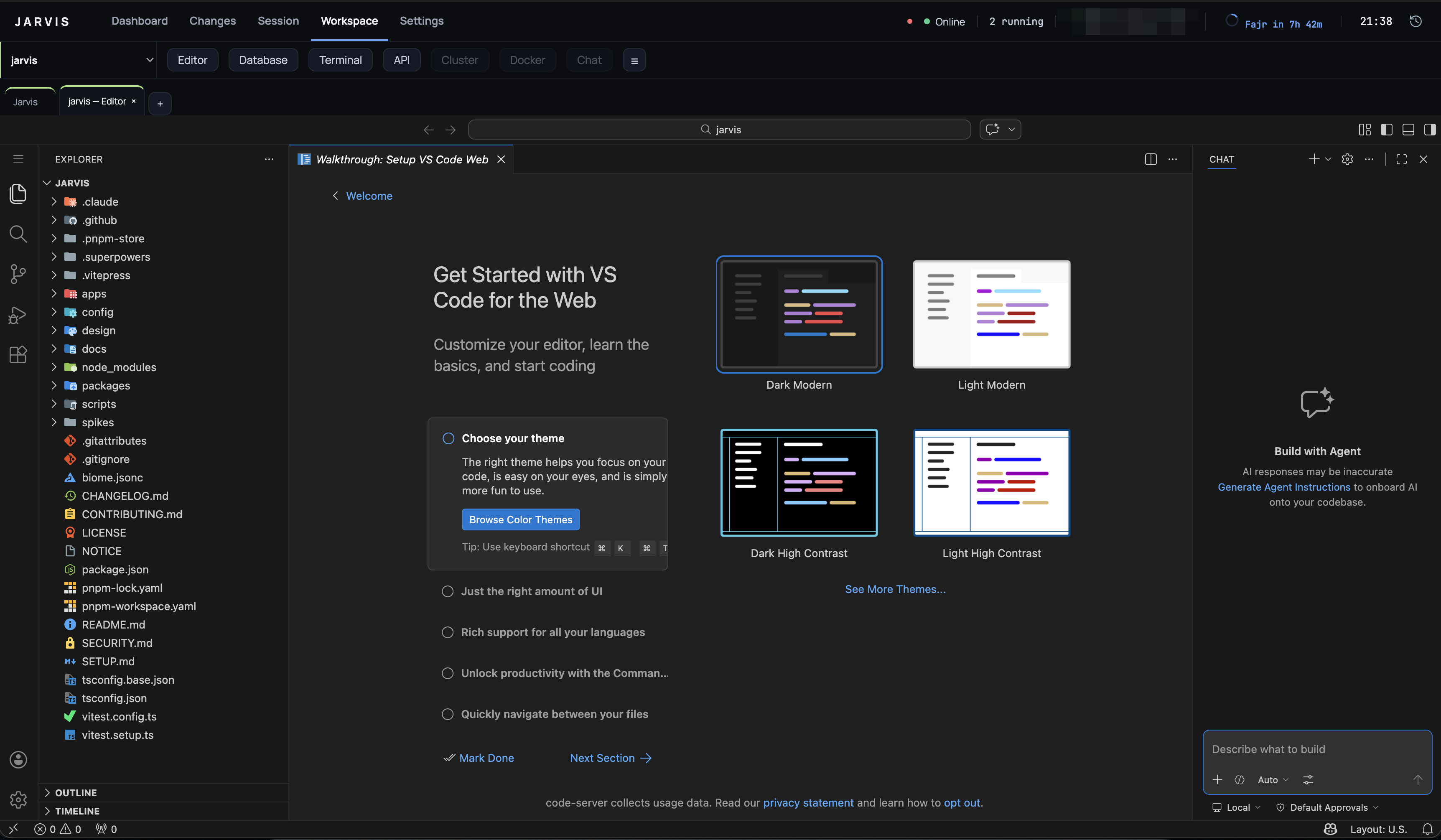
code-server, in the window, on whichever project the Workspace is pointed at.
Spawns code-server on a free loopback port and opens it as a tab. One instance per (project, root), reused, and killed when Jarvis quits.
A project can name the folders it wants edited. A large project is usually worked on two folders at a time, not thirty, so the editors: section of jarvis.yaml (see configuration) lists the roots the Editor button offers for a project:
editors:
  acme:
    - { name: portal-vue, path: portal-vue }
    - { name: api, path: api }
With no entry — which is most projects — the button opens the project directory, exactly as it always did. With one root it opens straight into that folder. With two or more it drops a small menu under the button to pick from; picking one opens it, and clicking the button again puts the menu away.
Each root is its own editor: its own code-server instance, its own tab, and a title that says which one (acme — Editor · api), so two editors of the same project are tellable apart in the tab strip. Asking for a root that is already open activates its tab instead of starting a second instance.
A root's path is relative to the project and must stay inside it; the config refuses anything else at load, and the manager refuses it again before spawning.
Starting is not instant, and the toolbar says so. code-server takes about a second to boot when its files are warm in the page cache and closer to nine when they are not; that is its own start-up and nothing here makes it faster. What the button does is stop pretending otherwise: it disables itself and the toolbar reads Starting the editor… until a tab exists.
Hovering the button starts it. The pointer arriving is the first evidence you want an editor, a few hundred milliseconds before the click, so the spawn begins then. It costs nothing extra if you do click — the manager shares one start per (project, root), so the click joins the start already running rather than beginning a second — and costs exactly what clicking later would have if you do not. Measured on a warm machine: about 5.4s from a cold click, about 90ms from a click after a hover. Keyboard focus counts as a hover, and a project whose editor is already open is not warmed again.
Database
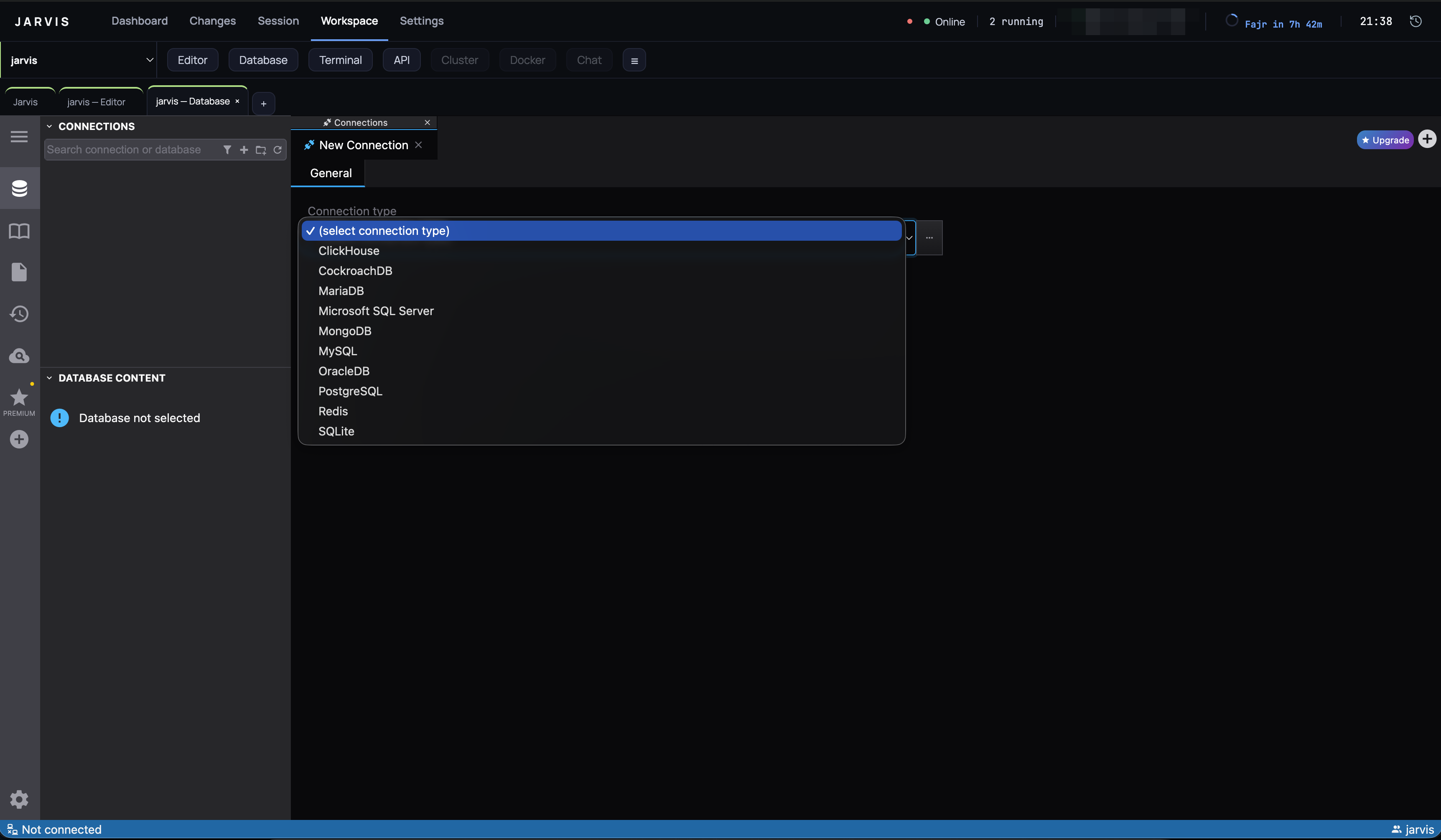
Spawns dbgate-serve for the project — a full SQL client: schema tree, data grid, query editor. Connections come from the databases: section of jarvis.yaml (see configuration), and a project that declares none gets an instance that manages its own.
DbGate is the slower of the two to start — a second or so warm, and twenty or more cold — so the Database button behaves like the Editor one: it disables itself, the toolbar reads Starting the database browser… for the whole wait, and hovering the button begins the start early.
Every instance is guarded by a generated login, shown in the status line when the tab opens. DbGate always listens on 0.0.0.0 and offers no way to bind to loopback, unlike code-server; the credential is the mitigation. It is a per-spawn random value and changes when Jarvis restarts.
Cluster
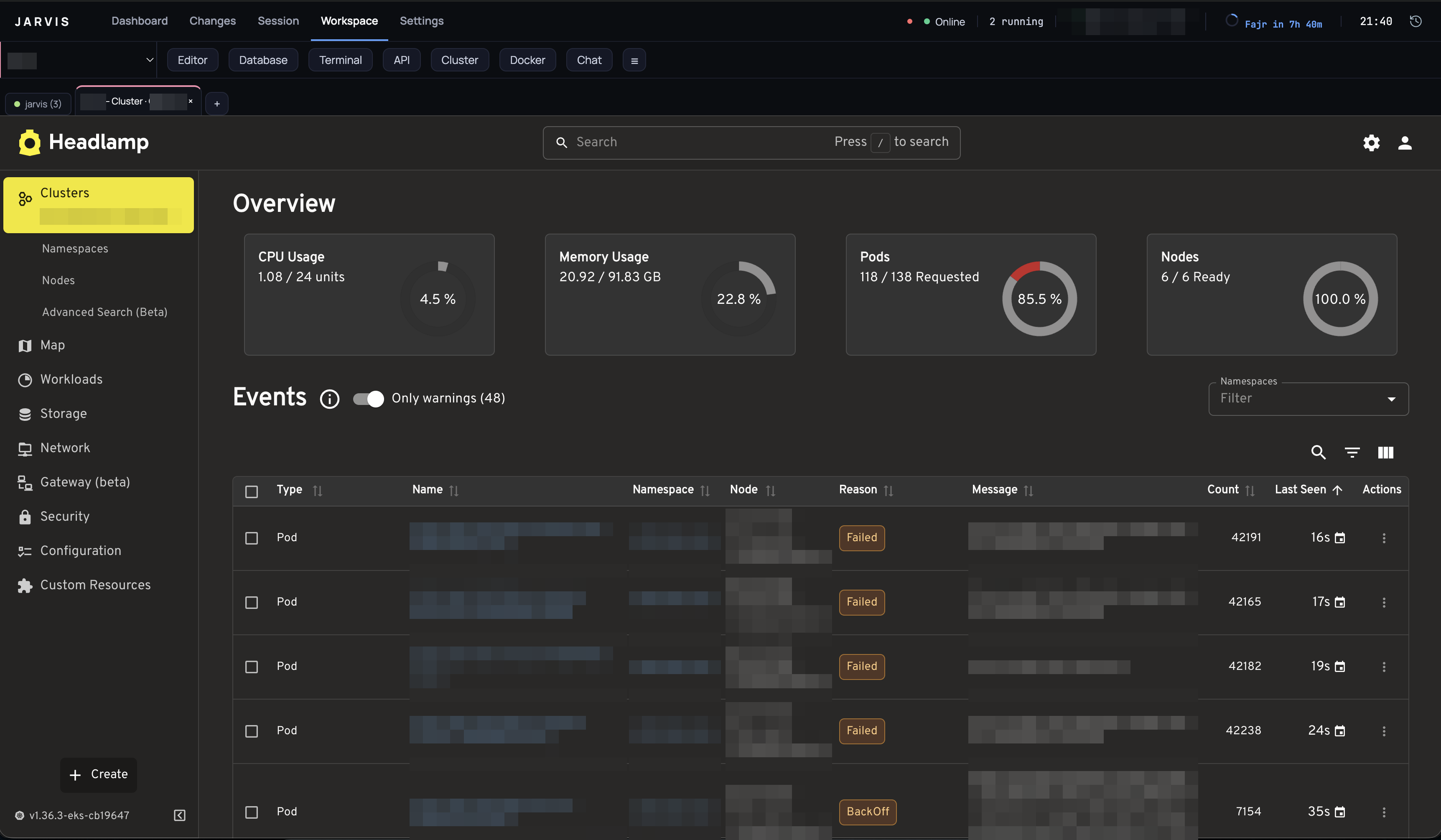
Spawns headlamp-server for the project and opens it as a tab — a Kubernetes cluster browser in the shape of Lens or OpenLens, scoped to the clusters the project declares. One instance per project, not per cluster: the same server is reused for every cluster you open from it, and -skipped-kube-contexts is what keeps it from also showing every other cluster your kubeconfig knows about.
Which clusters the button offers comes from clusters: in jarvis.yaml (see configuration). A project with no entry there gets a disabled button reading No clusters configured for this project. One cluster opens straight away; two or more drop a menu under the button listing their names, and picking one opens it. Opening a cluster that already has a tab activates that tab instead of starting a second one. Each open cluster gets its own tab, titled project — Cluster · cluster-name.
Starting is not instant. headlamp-server measures about twelve seconds cold, so the button disables itself and the toolbar says so until the tab is ready — the same pattern as Editor and Database. Hovering the button warms the server early, for the same reason hovering warms the Editor: the pointer arriving is the first evidence you want it, and the spawn is shared, so a click that follows the hover joins a start already in progress instead of beginning a second one. Hovering only warms the server, though — it never logs you in to AWS, so a pointer crossing the button cannot open a terminal or send an MFA push to your phone. That happens on the click.
Jarvis does not manage cluster credentials. The server reads your real kubeconfig and inherits whatever authenticates it — including a context whose credentials come from an exec plugin such as aws eks get-token, gcloud, or kubelogin. Those need a session that is already valid, because a spawned server has no terminal to prompt you in; see troubleshooting for what that looks like when it fails.
The exception is AWS. For a context whose credential plugin is aws eks get-token, Jarvis logs you in itself rather than asking you to have done it first: it opens a Terminal tab, runs saml2aws login && aws eks update-kubeconfig … there, and opens the cluster once that succeeds. Approve the MFA push when it arrives; the cluster tab follows. If it does not, see troubleshooting for the timeout.
Like the Editor tab, the server binds to 127.0.0.1 only — no generated login, because loopback is the whole mitigation.
Docker
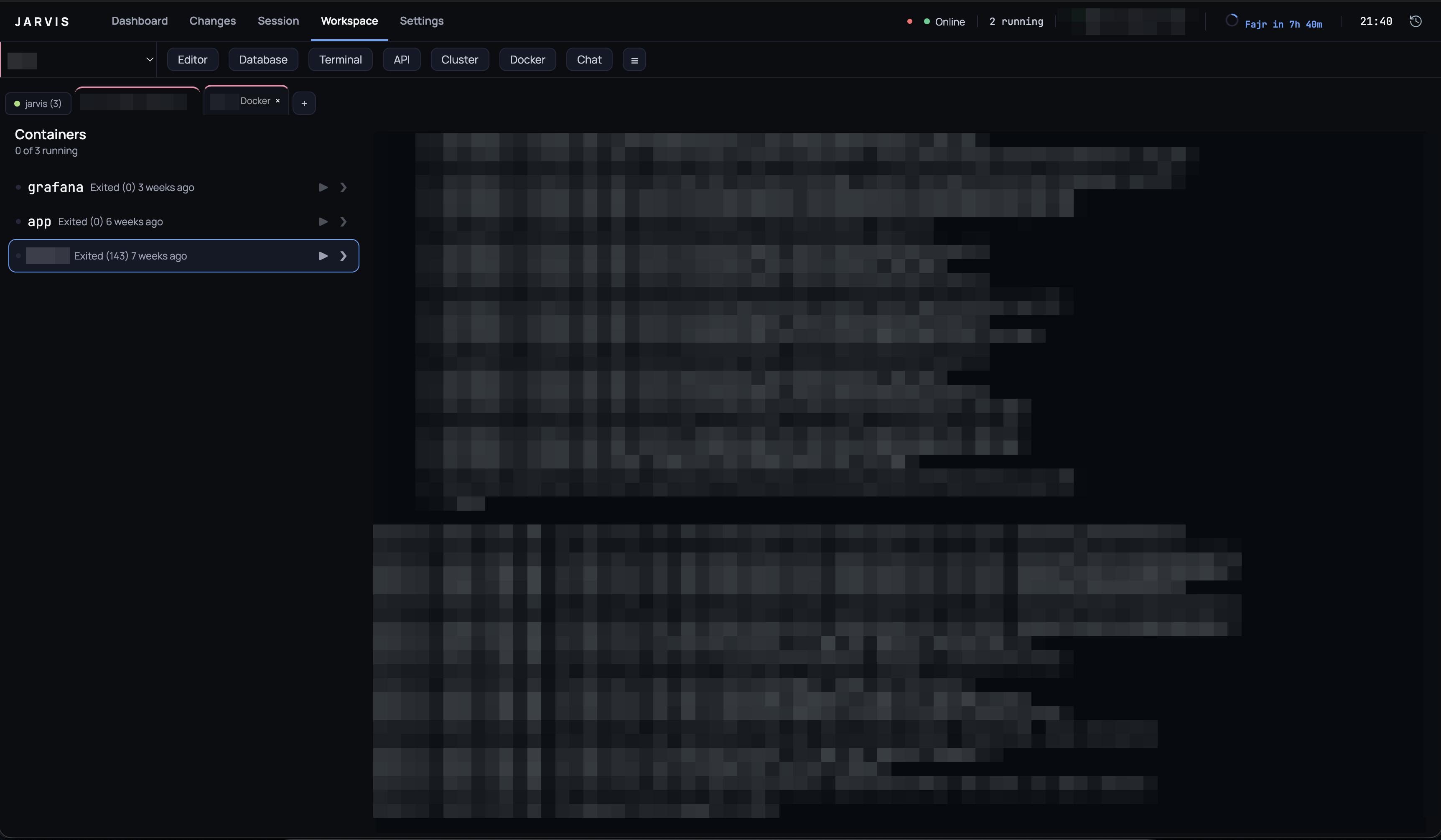
One tab per project, listing the containers docker: maps to it, under a count of how many of them are up. Each row is led by a dot — filled when the container is running, amber while it is restarting or paused, hollow when Docker has no such container — and shows the container's own status line (Docker's words, unchanged — Up 3 hours, Exited (0) 2 minutes ago) and the ports it publishes.
The buttons on the right of each row are ▶ start, ■ stop, ↻ restart, and ❯, which opens a Terminal tab already inside the container. They are dimmed until you hover the row or select it; hovering any of them names it. A row configured in docker: with no matching container shows greyed out instead of a status — see troubleshooting.
The containers sit in a column down the left; selecting one tails its log in the pane beside them, which says so until you pick one — one docker logs -f at a time, for the row you are looking at. Switching away from the tab stops that follower rather than leaving it running for a pane nobody is watching, so coming back starts the tail again from Docker's own last 500 lines. When every container in the list belongs to one compose project, Up and Down appear above the rows, and act on the stack as a whole.
Stop, Restart and Down ask first. Start and Up do not: neither interrupts anything that is running.
The list refreshes every three seconds while the tab is visible, because containers stop without asking Jarvis first.
Chat
Where the project's people talk, which is not the same place for every project: driver: teams for one, driver: slack for another. The Chat button opens the one the project declares; with two or more it offers a menu, like Editor and Cluster.
The tab is that provider's ordinary web app — nothing is spawned, no token is stored, and no API is called. What makes it worth a tab rather than a bookmark is the partition: a chat opens in the project's own cookie jar, so two projects on two different Teams tenants stay logged in side by side and neither sees the other. You sign in once and it holds across restarts.
Its title is fixed at open — project — Chat · name — because Slack and Teams both rewrite their own page title with the active channel and an unread count, which is exactly the churn that would make the tab strip unreadable.
A project with no chat: entry has the button disabled, and so does Personal. See configuration for the section, and for what a Conditional Access policy can do to a Teams tenant in a browser Jarvis hosts.
Terminal
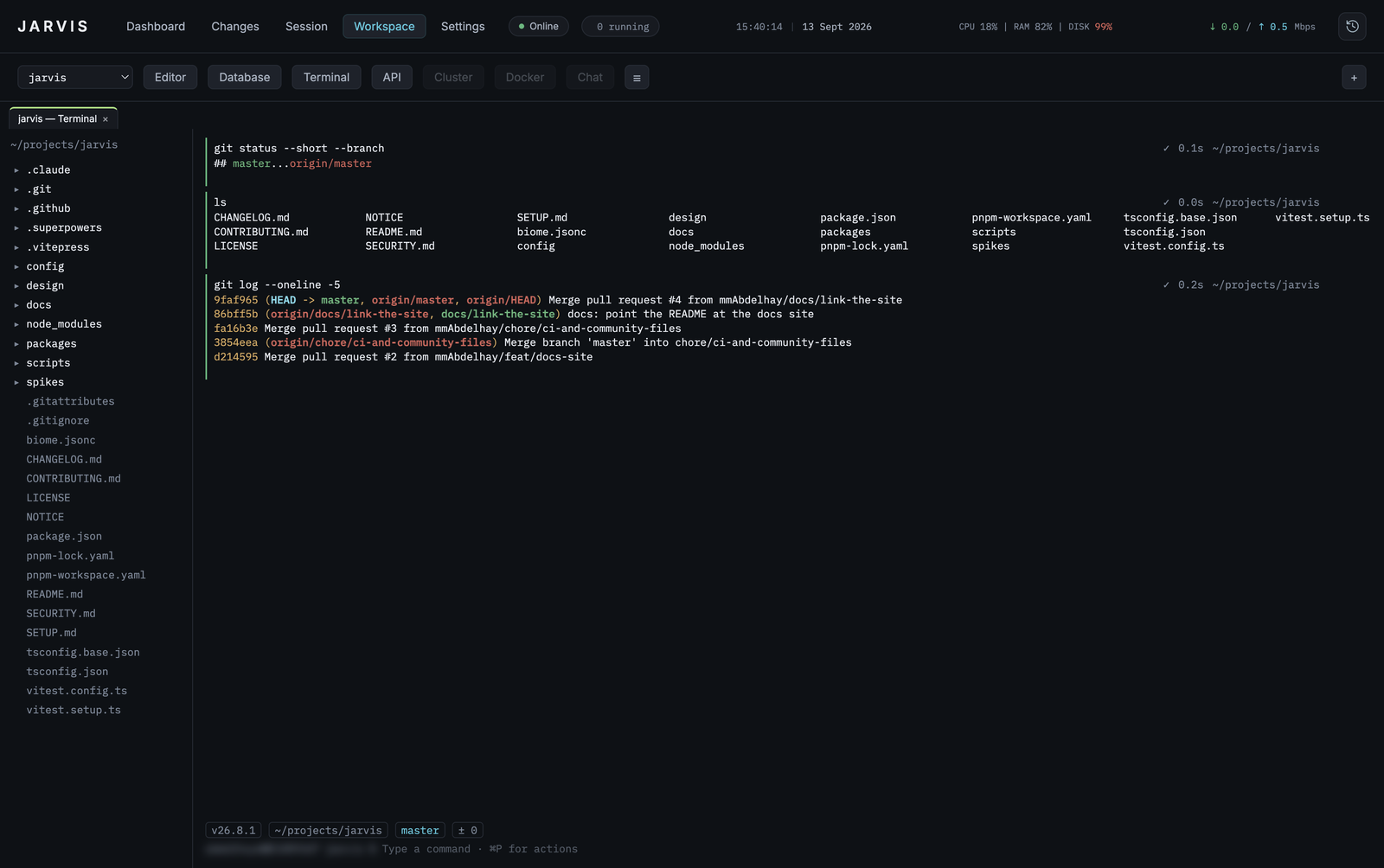
Each block carries its own exit state, duration and working directory. The chips under the prompt name the Node version, the directory, the branch and what is uncommitted.
Your login shell ($SHELL -l), rooted at the project, under a real pty. One per tab — two terminals in the same project is an ordinary thing to want. Scrollback survives switching tabs; closing the tab kills the shell.
Shift+Enter sends ESC+CR rather than a bare carriage return, which is what makes it mean newline to Claude Code and every other agent UI. ⌘F finds, ⌘C copies the selection, ⌘V pastes, ⌘K clears. Ctrl chords are left alone — those are real control bytes a program may want.
Blocks
With a zsh shell (see Autocomplete, below — the same shell integration this needs), the terminal groups each command and its output into a block: an addressable thing you can collapse, copy, re-run and jump between, instead of an undifferentiated scroll of text.
┌ ✔ pnpm test                    2.4s   ~/projects/jarvis   ▾ ⧉ ↻ ⋯
│ 42 passed
└
The header shows the exit status, how long the command took, and the directory it ran in. Its controls:
| Control | Does |
|---|---|
| ▾ | Collapse the block's output (it becomes ▸, which expands it again) |
| ⧉ | Copy the output |
| ↻ | Fill the input with this command |
| ⋯ | Copy command, copy both, filter the list to this command |
The one thing to know about every one of these: none of them run anything. Re-run does not re-run — it fills the input editor (or, with the editor off, types the command at the prompt) and stops there. A stray click on a block whose command was rm -rf build must not fire it. You always press Enter yourself. Workflows, history search and the AI's generated command all follow the same rule — see below.
Dragging across a block's frozen text is ordinary text selection, so ⌘C works on it with nothing special going on; the live terminal at the bottom of the pane keeps its own selection behaviour, as before.
Navigating blocks. Clicking a header selects it. ⌘↑ / ⌘↓ move the selection between blocks and scroll it into view. ⌘⇧F toggles a filter that narrows the list to failed blocks. ⌘F — the same find bar as always — searches the live screen first and, only if that finds nothing, searches the frozen blocks above it too, so one find covers what is running and what already finished.
A full-screen program takes the whole pane. top, vim, git rebase -i, a sudo password prompt, an agent's TUI — anything that switches to the terminal's alternate screen — gets the pane back exactly as before blocks existed: the block list and the input editor step aside until it exits. This is also why the Session route's agent terminal looks unchanged most of the time — an agent holds the alternate screen for as long as it runs, and blocks only appear for the shell moments between agent runs.
Blocks need the zsh integration. Without it — any other shell, or the integration failing to install — nothing above happens and the tab is exactly today's terminal. To turn blocks off deliberately, see terminal.blocks.enabled in configuration.
The input editor
At an idle prompt — a command just finished or the tab just opened, nothing running, the primary screen — the typed line lives in a small editor rather than going straight to the pty: multiline editing (Shift+Enter for a newline, Enter to run) and lightweight syntax highlighting of the command word, flags and paths. It is visible only there. The moment a command starts, or the alternate screen takes over, it hides and every keystroke goes to the pty raw again, exactly as it always did — so a sudo prompt, an interactive rebase or a ^C for a hung command are untouched.
↑ and ↓ in an empty editor walk Jarvis's own command log, not zsh's history. ^R opens the palette's history search (below). To turn the editor off on its own, keeping blocks, see terminal.blocks.inputEditor in configuration.
An empty editor shows one line of grey hint text, Type a command · ⌘P for actions; the first keystroke removes it. It is not Warp's wording on purpose — Warp's input doubles as an AI prompt, and this one does not, so the hint says what the box is for and points at the palette, which is otherwise discoverable only by already knowing it exists.
Above the editor sits a row of chips, the same strip Warp draws above its own input:
v22.11.0 ~/projects/jarvis master ± 4Runtime version, the pane's directory ($HOME collapsed to ~), the git branch, and a ± count of insertions and deletions. They refresh once per prompt — the same moment the file sidebar re-roots — never on a timer, so a slow repository shows a beat-old row rather than blocking the input. The directory they name is the pane's own live directory, so a cd moves the path chip and the branch and ± chips with it, exactly as it moves the sidebar. A burst of prompts (a held Enter, a pasted script) does not mean a burst of git reads: one read is in flight per pane at a time, and one answer per directory is shared for a second, so the row you end up with is the one for the last prompt.
A chip that does not apply is absent, not empty: no git repository means no branch chip and no ± chip, not a blank one; no package.json means no runtime chip; a detached HEAD shows its short SHA in place of a branch name. Without the zsh shell integration the pane's directory isn't known at all, so there are no chips whatsoever, rather than a guessed one. The same holds for a shell that has left the project — cd /, or into another checkout: the directory can no longer be checked against the project root, so the row empties rather than going on describing the project you started in.
These chips are drawn by Jarvis, above the editor — your shell's own PS1 still renders inside it. If your prompt already prints a branch, you will see it twice: once from Jarvis's chip, once from your own prompt. This is a known trade-off for v1, not a bug.
Splits
A Terminal tab holds a tree of panes rather than a single shell. ⌘D splits the focused pane to the right, ⌘⇧D splits it down, ⌥⌘← / ⌥⌘→ move focus between panes. Each pane is a full terminal in its own right — its own blocks, its own editor, its own autocomplete. Drag the divider between two panes to resize them.
To close a pane, use ⌘P → "Close pane"; closing the last pane closes the tab. (⌘W is the window's own Close Window shortcut and never reaches the page, so there is no keyboard chord for this.) Closing a pane kills its shell; closing the tab kills every shell under it.
The file sidebar
A tree of the project on the left of the tab, one per tab, not one per pane — a three-way split would otherwise be mostly tree, and three toggles to manage. It follows whichever pane has focus: split with ⌘D and cd somewhere in the new pane, and the tree re-roots to that pane's directory; click back into the first pane and it re-roots again, to wherever that shell is. It needs the same zsh integration blocks does, since it re-roots on the same signal a returning prompt sends — a pane without it never grows a sidebar at all.
Clicking a folder expands it, listing its immediate children only; nothing is listed before you ask. Clicking a file opens that file itself in the project's Editor tab — not just its folder.
There is one editor per project, rooted at the project directory: the same code-server instance and the same tab the toolbar's Editor button opens for a project with no editors: roots. Every file you click lands in it. The editor is rooted at the project rather than at the clicked file's folder because rooting it deeper buys nothing — it is the "open this file" instruction in the URL that opens the file, not the root — while costing a whole Node process, a port and a cold start per folder you happen to click.
Reuse costs something of its own: code-server only honours the "open this file" instruction at page load, so opening a second file means reloading that tab, and whatever the tab's own browser session held — an unsaved change made in that editor, say — is lost. The tab is the project's own Editor tab, titled project — Editor, so which tab a click will land on and reload is visible before you click.
The tree cannot show anything outside the project root — the directory projects: gives for this project in jarvis.yaml, not wherever the shell currently is. A shell can cd /, and the tree does not follow it out: it simply stops at the root, symlinks resolved first so a link pointing outside the project doesn't reopen the door. This is the feature's actual security boundary, not an incidental limit.
It is dismissable from ⌘P → "Toggle file sidebar" — there is no keyboard chord for it, only the palette entry.
It keeps itself current without watching the disk. A recursive watch on a large repository costs more than a sidebar is worth, and behaves differently on every OS, so the tree re-reads instead: after every command (each prompt the shell draws), every few seconds while the sidebar is on screen, and on ⌘P → "Refresh file sidebar". A re-read keeps open folders open and leaves every row whose folder did not change exactly as it was, so nothing under the pointer jumps. A file an agent writes in another tab shows up within a few seconds; a git checkout shows up as soon as its prompt returns.
New file, New folder, Rename and Move to Trash. Right-click a folder for all four, a file for the last two, or the empty space below the rows to create at the root; the two buttons beside the header create at the root too. A name is typed in place — Enter commits, Escape or clicking away cancels — and a rename preselects the name without its extension. Nothing is ever overwritten: a name that is already taken is refused, and says so under the tree. Move to Trash asks nothing, because it goes to the system trash and can be put back from there. The same boundary as listing applies to every one of them: the folder is checked against the project after symlinks are resolved, and a symlink is renamed or trashed as the link, never what it points to. These are desktop-only. A paired phone browses the same files from a terminal's Files button — folders open in place, and a file's path can be typed into the terminal — but cannot change them.
The plan panel
A plan, rendered and editable beside the terminal, with comments you can hand back to the agent in one message.
Where it opens. When the tab's Claude Code session writes a plan in plan mode, the panel opens beside the pane on its own, without taking focus from the terminal. Close it and it stays closed for that tab, splits included. Toggle it from ⌘P → "Toggle plan panel" or the tab's right-click menu.
What it can show. The header's file name opens a picker with three groups:
- This session — the plan the session's own transcript last pointed at.
- Plan mode · recent — Claude Code's plan-mode scratch files, under
~/.claude/plans(or each agent'sconfigDir). - Repo · docs/superpowers — specs and plans committed under the project's
docs/superpowers/specsanddocs/superpowers/plans.
Nothing else can be opened, from the desktop or a phone: every read and write is checked against those folders after symlinks are resolved, only .md files, and nothing over 1 MB. Source shows the raw markdown instead of the rendered view. A plan with a checklist (- [ ] / - [x] items) shows how far through it is in the header — "3/7 done" and a small meter — which moves as the agent ticks items off.
Editing a section. Click a heading, paragraph, list or code block to edit it in place; ⌘S writes back that section and nothing else, so the rest of the file keeps its exact bytes. If the file changed on disk while you were typing — the agent revised the plan, say — the save is refused and a notice keeps your text, rather than one edit silently overwriting the other. Remote images in a plan are never loaded, and links open only if they are http, https or mailto.
Comments. Select text and press Comment, or use the + in a section's gutter to comment on the whole section. Each comment becomes a numbered pin in the gutter: amber while it is queued, in the accent colour once it is sent. A comment follows its section through edits — by the section's identity first, then by the text it quoted — and one whose section was removed is listed as Section changed rather than dropped. Click a pin to edit or delete its comment. Comments are kept in ~/.config/jarvis/plan-comments.json, so they survive restarts.
Sending them. The tray at the bottom counts what is queued. Send to Claude pastes every queued comment into the tab as one message, and submits it:
Comments on /Users/you/projects/acme/docs/superpowers/plans/arabic-voice.md:

1. On "fuzzy-match the transcript against project keys": also match transliterations.

2. On the section "Tests first": add a test for mixed scripts.

Please update the plan to address these.
Keep for later folds the tray away and leaves them queued. The message is pasted as one bracketed paste with control bytes stripped, so nothing in a plan or a comment can act as a keystroke in the terminal.
On the phone. The terminal screen has a Plan sheet with the same picker, comments, per-section editing and Send — the same files, the same checks, and the same comment store as the desktop.
The command palette
⌘P opens a filterable list of everything the focused pane can do: copy or re-run the selected block, collapse every block, jump to the next failed one, toggle the failed-only filter, split right / split down / close pane, clear the terminal, toggle or refresh the file sidebar, run a saved workflow, generate or explain a command with the AI, and history search. The list is built for the pane as it is right now, so an action with nothing to act on — re-run with no block selected, splits on the Session route's terminal — is left out rather than offered and ignored. (Blocks themselves are turned on and off in configuration, not from here: see terminal.blocks.enabled.)
^R jumps straight to history search — Jarvis's own command log, the same one the editor's ↑/↓ walk, not zsh's. Picking a history line fills the input editor; it does not run it.
Workflows
A saved workflow is a YAML file with a name, a description, and a command that can carry slots. "Run workflow…" in the palette lists them, asks for each placeholder in turn, and fills the editor with the result — never runs it. See workflows: in configuration for where the files live.
Notifications
A block that takes longer than terminal.notifyAfterSeconds (30s by default) to finish, in a pane that is not the one you're looking at, raises a notification naming the command and whether it succeeded. Set it to 0 to turn this off.
AI, strictly on demand
Two actions in the ⌘P palette, and nothing else — there is no AI while you type. The user declined that twice while this terminal was being designed, and it stays declined: nothing here is sent anywhere unless you choose one of these two actions yourself.
- Generate command… — describe what you want in plain language; the result is written into the input editor for you to read, exactly like a re-run or a workflow. It does not run.
- Explain this failure — offered only on a selected block that actually failed. Sends that block's command, exit code and the tail of its output to Jarvis's brain, and shows the answer inside the block itself.
Autocomplete
As you type, a dropdown appears under the cursor with the commands you actually run. ↑/↓ move, Tab or Enter accepts, Esc closes. Accepting only fills the line in — you still press Enter yourself.
Suggestions come from three places, in order:
- Your shell history, whole, arguments included —
saml2aws login, notsaml2aws. Ranked by how often and how recently you have run something, and boosted for the directory you are in, so./scripts/port-forward-dev2.shsurfaces in the repo it belongs to and stays out of the way everywhere else. - Paths, completed against the directory the token you are typing names.
- A small built-in table of subcommands and flags for
git,docker,npm,pnpm,ghandgo.
While the dropdown is shut, every key goes to zsh unchanged — Tab is still zsh's own completion, ↑ is still history. Nothing is intercepted until there is something to intercept it for.
Finding the prompt needs a shell hook, which Jarvis installs by pointing the terminal's ZDOTDIR at a directory of its own whose files source yours. Your ~/.zshrc, ~/.zprofile, ~/.zshenv and ~/.zsh_history are read and never modified. Directory affinity needs a working directory that zsh's history does not record, so Jarvis keeps its own log at ~/.config/jarvis/terminal-commands.log.
zsh only. Under any other shell nothing is installed and no dropdown appears — the terminal is exactly the one you have today. The same is true of every failure: an unreadable history, a wrapper that cannot be written, a prompt with no marks. To turn the whole thing off, including the ZDOTDIR injection:
terminal:
  completion:
    enabled: false
See configuration for historyPath and commandLogPath.
API
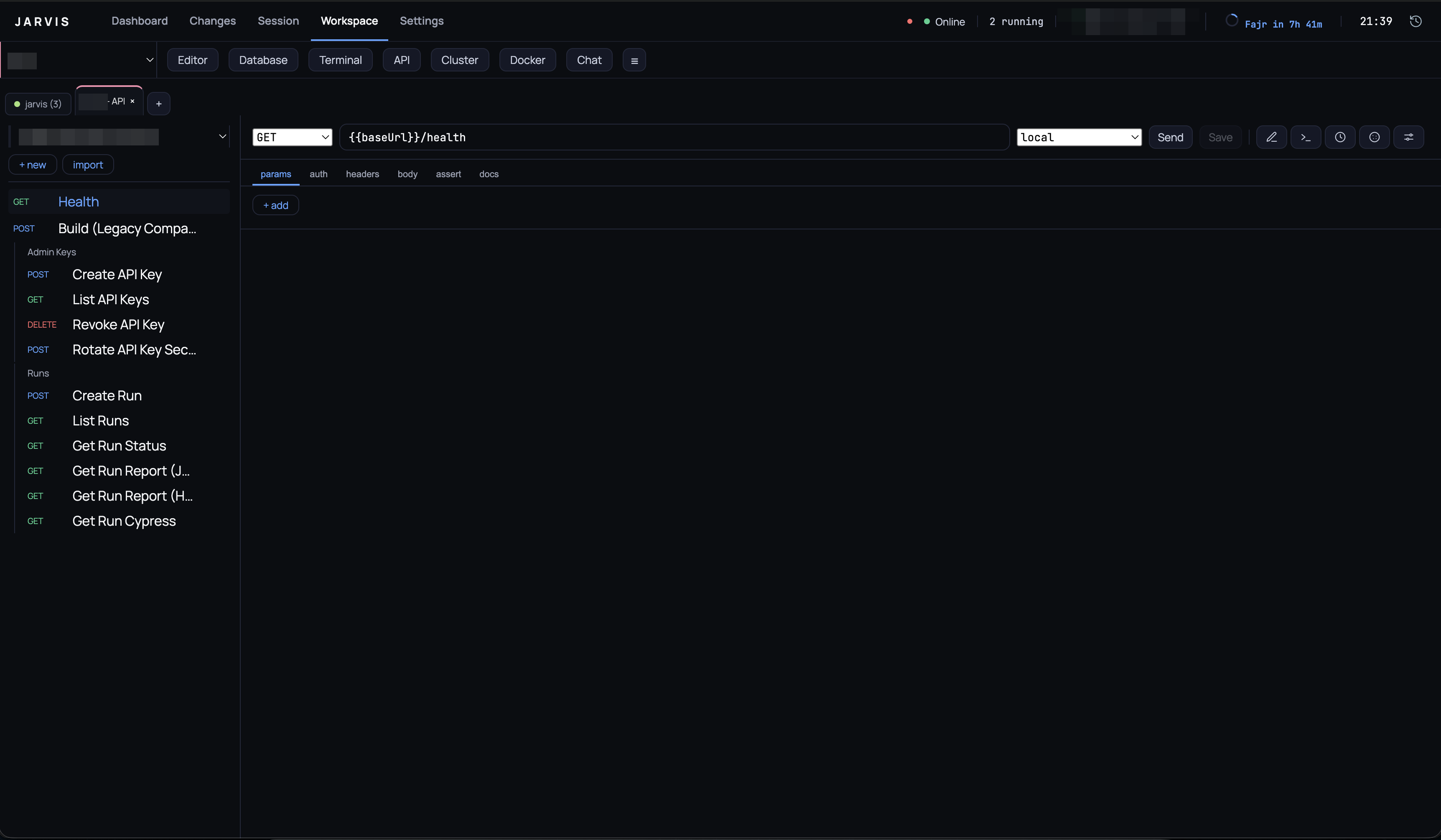
A request builder over the project's own Bruno collections. See the API client.