Remote access
The mobile remote bridge lets a paired phone reach this laptop over a local connection — see the root README's "What it exposes" for what the bridge is, when it listens, and what a paired phone can do on this machine. This page covers the phone side: pairing, the owner login every paired device signs in with, what the phone app can see, what happens when a pairing ends, and the three ways a pairing can be reached. The same app also runs in a browser on another computer or phone; see The browser client at the end.
Three paths to a pairing
Which trust mode a pairing uses — and whether the Editor, Database and Cluster tabs can ever work for it — depends on how the laptop's certificate is set up at the moment you pair, not on any separate switch:
- Tailscale with a real certificate.
remote.tls.certPath/keyPath(see configuration) point at a certificate fromtailscale cert(below) that carries a DNS name. The pairing link then carries that name, and the phone dials it for/pair,/rpcand the WebView with the OS's own trust store — no pin. The phone's sidecars screen shows its three rows enabled; whether tapping one actually opens the tab further depends onremote.sidecarProxybeing on too — with a named certificate served and the proxy on, Editor, Database and Cluster open in an in-app WebView through the sidecar proxy. This is the only combination where those three tabs work. - Bare LAN, pinned. No configured certificate, or one without a DNS name. The laptop serves its self-signed certificate; the phone pins its exact fingerprint, the same as every pairing before this milestone. The confirm step says "pins …" rather than naming a trust store, and the phone's record carries no name. The Dashboard and its projects, metrics and sessions work as before; the sidecars screen shows its three rows disabled with a hint to connect over Tailscale with a real certificate, and the phone never asks the laptop for one.
- Nothing.
remote.enabledisfalse, or nothing is paired and no pairing window is open — no socket listens at all (see "What it exposes" in the root README).
A pairing's trust mode is fixed at pairing time and does not change afterwards; a laptop that moves from path 2 to path 1 (or the reverse) needs the phone to pair again, because the certificate the phone would need to trust changed. remote.sidecarProxy itself can be flipped at any time without a re-pair — on a path-1 (named-certificate) pairing this only changes what tapping a row on the phone answers, not whether the rows show enabled. The flip does restart the bridge, though: the phone's live /rpc connection drops and reconnects, and every open sidecar tab's handle is cleared, so open sidecar tabs need reopening.
The tailscale cert walkthrough
To get path 1 above:
- On the laptop, with Tailscale installed, MagicDNS on, and HTTPS certificates enabled for the tailnet in the Tailscale admin console, run
tailscale cert <machine>.<tailnet>.ts.net(your own machine and tailnet name —tailscale statusshows both). This writes<name>.crtand<name>.keyin the current directory. - Set
remote.tls.certPathandremote.tls.keyPathinjarvis.yamlto those two files (~/is expanded), and turnremote.sidecarProxyon. - Restart the bridge for the new certificate to take effect: toggle it Off then On in Settings, or restart Jarvis.
- Re-pair the phone. The pairing link now carries
&name=<the certificate's DNS name>, and the confirm step shows that name and "trusts the certificate through the phone's own trust store" rather than a pin. The phone needs Tailscale's MagicDNS on to resolve that name — the same requirement as the laptop.
Renewal. A tailscale cert certificate is short-lived and needs renewing (Tailscale documents its own interval). Run tailscale cert again for the same name and toggle the bridge (Off/On, or restart Jarvis) — no re-pair needed: the phone dials the same name every time in this mode, so a renewed certificate under that name is trusted the same way the first one was.
If a pinned (path 2) pairing's laptop is later moved onto path 1 (or its self-signed certificate is regenerated), the phone's saved fingerprint no longer matches what the laptop serves — it shows the pin-mismatch banner described below, with a "Pair again" button: tapping it asks you to confirm ("This removes the pairing from this phone. You'll need to scan a new QR code to pair again. The computer keeps this device listed until you also remove it in its Settings."), then unpairs on the phone and lands on the pairing screen, ready to scan the new link.
Sidecars over Tailscale, from Settings
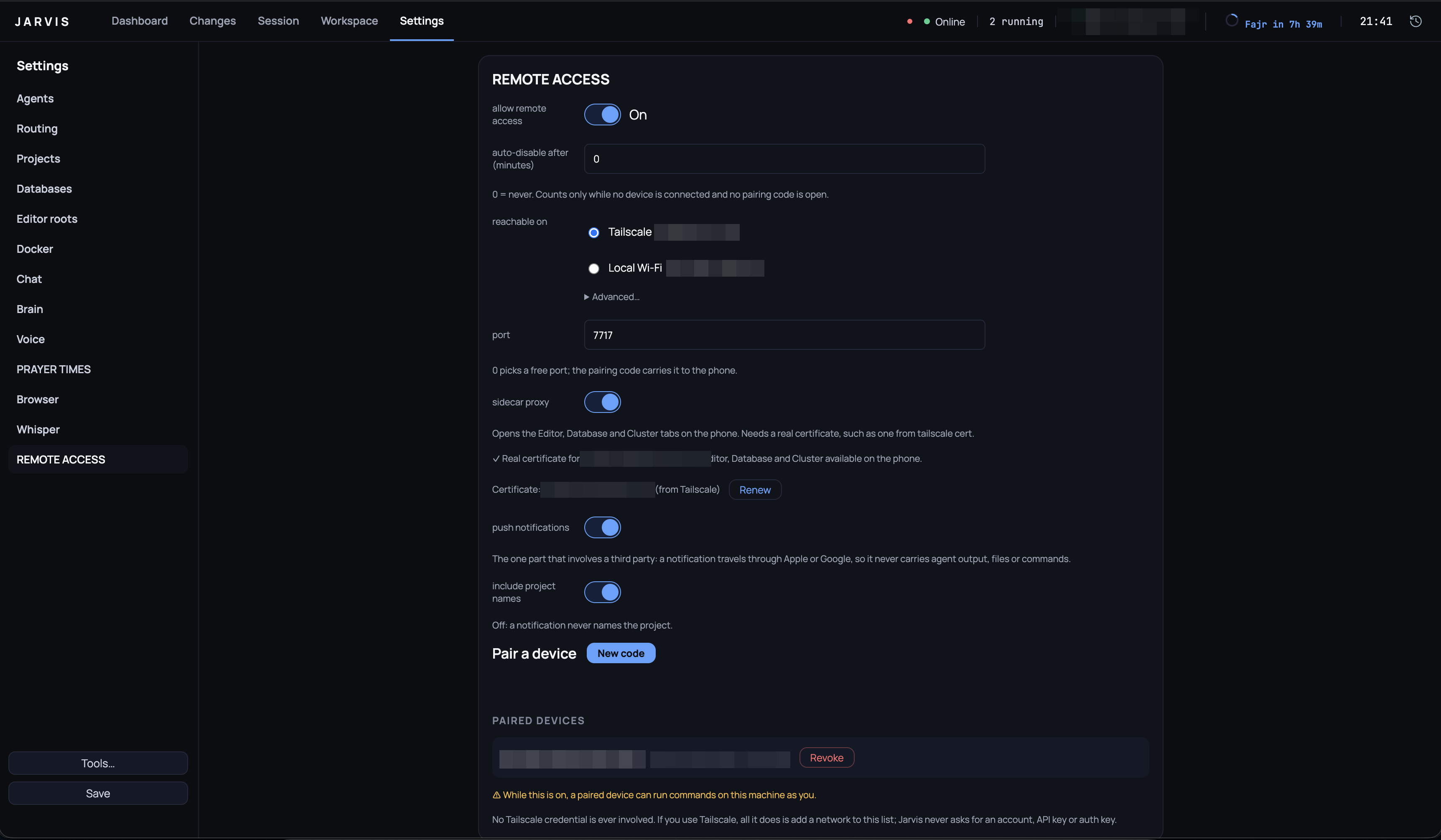
Settings → Remote access can get the same certificate the walkthrough above runs by hand:
- On the laptop, with Tailscale installed and connected, enable HTTPS certificates for the tailnet in the Tailscale admin console (DNS → HTTPS Certificates) — the laptop's own
tailscale certfails with "your Tailscale account does not support getting TLS certs" until this is on, and Settings shows exactly that, with a link straight to the admin console's DNS page. - In Settings → Remote access, under the sidecar proxy switch, click Get certificate from Tailscale. This finds Tailscale, reads the laptop's own MagicDNS name (
tailscale status), and runstailscale certfor it — the same command and the same~/.config/jarvis/tls/destination the manual walkthrough uses. On success the certificate row names it and the sidecar proxy switch turns on by itself. - Restart the bridge for the new certificate to take effect: toggle it Off then On, or restart Jarvis — same as the manual walkthrough.
Re-pairing. Exactly the rule above: a laptop moving from no certificate (or a self-signed one) to this named one is moving from path 2 to path 1, so every phone already paired needs to pair again — the pairing link's carried name changed. Clicking Get certificate again once a certificate is already configured relabels the button Renew and re-runs the same command for the same name; Tailscale renews it in place, so no re-pair is needed for a renewal — the phone was already trusting the certificate's name, not its fingerprint.
If Tailscale is not installed, or not connected, the button's own error names which ("Install Tailscale on this Mac." / "Connect Tailscale first.") rather than the generic HTTPS-certificates message above.
What the sidecar proxy exposes
On path 1, opening the Editor, Database or Cluster tab from the phone gets a one-time URL under /s/<a random handle>/… on the same host and port as everything else the bridge serves — never the sidecar's own port. That first request redeems a single-use key and sets a cookie (HttpOnly; Secure; SameSite=Strict, scoped to that one handle's path) that authenticates every request after it; any plain HTTP request that isn't a validly cookie- or key-authenticated /s/<handle>/… request gets its connection closed with no response at all (the /rpc and /pair upgrades are unaffected — they are answered as before), the same "no banner to an unauthenticated peer" rule the rest of the bridge already follows. A handle lives at most 24 hours and at most 8 at a time per device (see the root README) — but that bound is on new requests only: neither the 24-hour expiry nor an eviction (publishing a 9th handle for the same device retires its oldest) cuts a connection already open on the affected handle; only revoking the device or restarting the bridge does that.
Owner login
Reaching this machine takes two things, checked separately:
- Pairing says which device is talking. The laptop issues a device token when you approve the pairing dialog, and every connection starts by presenting it.
- Owner login says that you are the one holding it. A paired device that connects is locked until it signs in with the owner password (or, in a browser, a passkey). A lost or copied phone with a valid pairing still cannot see or run anything.
Setting the password. The owner password is set and changed only on the laptop, in Settings → Remote access → Owner account — never from a phone or a browser. It must be at least 12 characters. Changing it asks for the current one first. It is stored as a scrypt hash (N=2^17, r=8, p=1, with a random salt) in ~/.config/jarvis/remote/owner.json (see configuration); the password itself is never written anywhere or logged.
The bridge will not start without one. With no owner password, the bridge stays off even when remote.enabled is true, and Settings says "Remote access stays off until you set an owner password below." This covers upgrading, too: if the bridge was on before this version, it stays off after the upgrade — your paired phones cannot connect — until you set a password. Setting the first password starts the bridge straight away. jarvis.yaml needs no change, and existing pairings keep working.
What a locked connection can do. A locked connection stays open, but answers only the sign-in channels: status, password login, passkey login, token refresh, resume and logout. Everything else — every screen, every subscription, every upload, and opening a sidecar tab — is refused with locked until sign-in succeeds. Adding a passkey is refused too; that requires a signed-in connection.
Tokens. A successful sign-in returns two tokens:
- an access token that lasts 15 minutes. The phone keeps it in memory only, never on disk.
- a refresh token that gets a new access token without the password. It expires after 7 days unused, and 30 days after the sign-in that started it, whatever happens. Each refresh replaces it with a new one and retires the old one. If the reply carrying the new one is lost (the network drops mid-refresh), the phone retries with the token it still holds. Within 10 minutes, and only while the new token has never been used, the laptop issues a fresh pair instead and cancels the unused one (audited
refresh-retry). Later than that, the sign-in ends quietly and the phone asks for the password (refresh-stale). Any other retired refresh token presented again is assumed to be copied: the laptop ends that sign-in and every token descended from it, and shows a desktop notification: "An old sign-in session was reused".
The laptop keeps only SHA-256 hashes of refresh tokens, in sessions.json. Access tokens are held in memory only, so restarting Jarvis or the bridge means every device refreshes or signs in again.
Guessing limits. Wrong passwords are limited per device and across the whole bridge:
- Per device. After 5 wrong passwords, that device cannot try again for 1 minute. Each further wrong password doubles the wait, up to 1 hour. A successful sign-in resets the count. The laptop shows a desktop notification naming the device, at most once per device every 15 minutes.
- Across all devices. 20 wrong passwords within one hour pause every sign-in, from every device, for 15 minutes. The laptop shows a desktop notification: "Remote sign-in paused".
These counts are kept in memory, so restarting Jarvis resets them. While a lockout lasts, even the right password is refused, and the reply does not say whether it was right. The audit log records each sign-in (login-succeeded, login-failed), each lockout as it starts (locked-out, with scope=device or scope=global), and attempts refused during a lockout. Those refusals are collected into one login-refused line with a count per device per minute, so a device retrying in a loop cannot flood the log. Attempts refused because too many password checks were already waiting are logged the same way, with scope=capacity.
What signs devices out. Each of these ends signed-in sessions:
| Trigger | Ends |
|---|---|
| Changing the owner password | every session, on every device |
| Deleting a passkey in Settings | every session, on every device |
| Sign out everywhere in Settings | every session, on every device |
| Revoking a device in Settings | that device's sessions, and its pairing |
| Logging out on the device | that one sign-in |
Signed-in connections are locked on the spot, not at their next request, and the device is told why. Sidecar tabs (Editor, Database, Cluster) follow the sign-in. When a device's connection locks, its sidecar handles are revoked and its live sidecar connections are cut mid-stream, the same way revocation cuts them. A device that is not signed in cannot open a new one.
On the phone. After pairing, the phone shows an unlock screen. Enter the owner password once. If the phone has a screen lock, the app then keeps the refresh token in the phone's secure storage: the iOS keychain (only while a passcode is set, on this device only) or Android storage encrypted with an Android Keystore key. It is never included in backups. Before reading it, the app asks for Face ID, fingerprint or the phone's passcode, so later unlocks go through that prompt. The app makes that check, not the stored key: the key is not bound to biometrics, so something that can run code as the app on an unlocked phone could read the token without a prompt. The password field is always there as a fallback. A phone with no biometrics or passcode set up keeps nothing, and asks for the password every time. The app also locks itself after 15 minutes with no touches. You can choose 5, 15, 30 or 60 minutes in the app's Settings → Security, which also has Log out. Logging out ends this phone's sign-in on the laptop and deletes the stored token. The pairing stays. A phone coming back from the background after its idle time is already locked.
Passkeys are for the browser client (see The browser client below). A passkey is added from a browser that is already signed in, and adding one asks for the owner password again. The laptop's Settings → Remote access → Owner account lists passkeys and deletes them. The phone app always uses the password and the phone's own unlock. A passkey belongs to the certificate's DNS name and is checked against the browser listener's address, so while browser access is off (remote.web.enabled is false, or its listener is not running) the passkey channels answer unsupported and only the password works.
Protocol version 2. Owner login changes the wire protocol, so the phone app and the laptop must both be updated. An older app talking to an updated laptop, or an updated app talking to an older laptop, is refused at connect. The updated app says "Update the Jarvis app. If it's already up to date, update Jarvis on your computer." Existing pairings carry over once both sides are updated. A pairing code made before the upgrade (its link says v=1) is refused, so click New code for a fresh one (v=2).
The phone app
A companion phone app (apps/mobile in the repository) pairs with Settings → Remote access on the laptop.
Installing it. Android: download jarvis-mobile-<version>.apk from the releases page, open it on the phone and allow the install (it is not on a store). iOS has no prebuilt binary — build it from source with EAS; apps/mobile/README.md has the walkthrough, which is also the path for a development build on either platform.
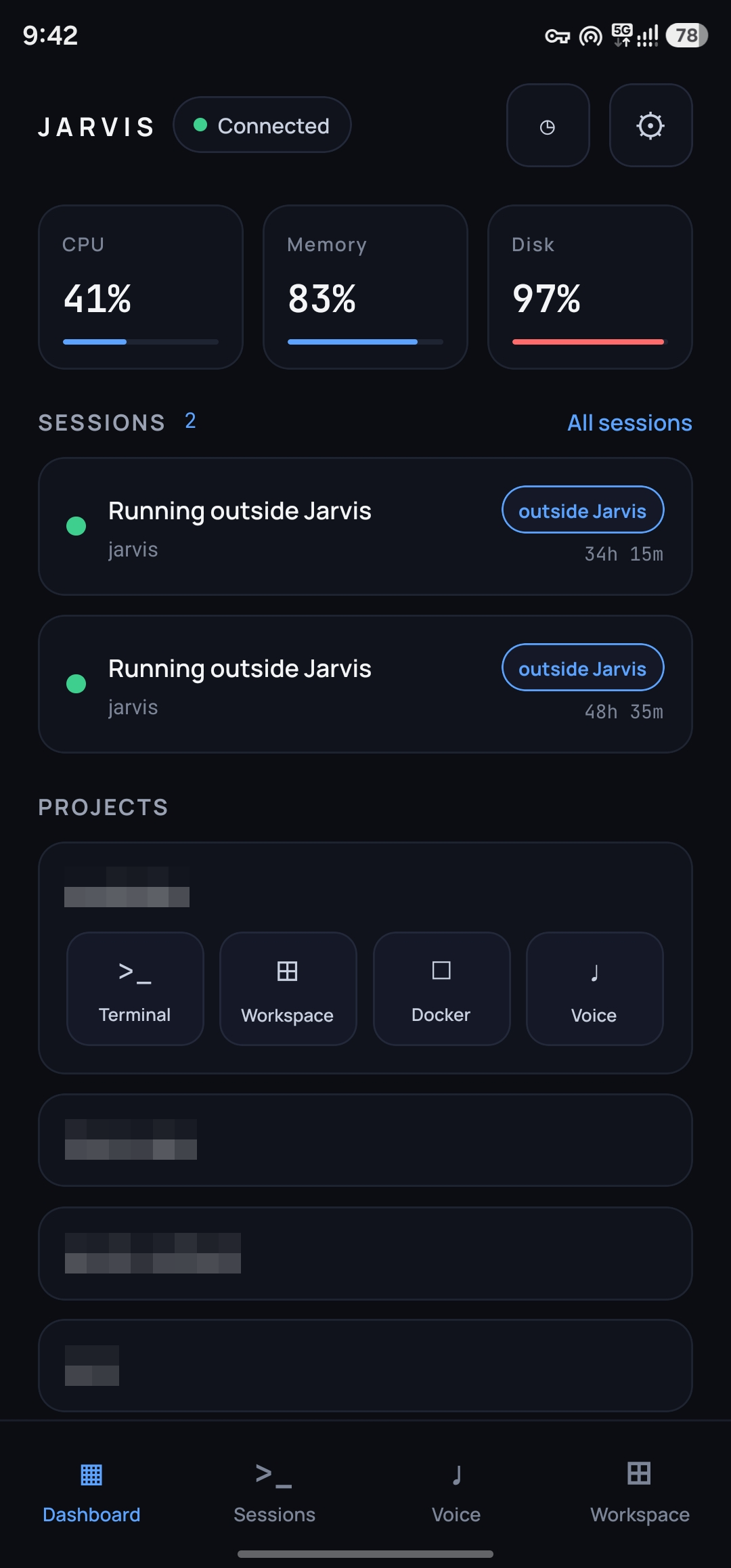
Pairing. With the bridge on and a pairing window open, the laptop shows a QR code beside the link text, and the certificate's fingerprint tail (its last 4 hex characters) printed beside both. On the phone, scanning that QR, pasting the link text, or opening the jarvis://pair… deep link all land on the same confirmation step first: the host, the port, and that same fingerprint tail, so you can check the two match before anything connects. Approving there opens the pinned connection and sends the pairing exchange; approving the laptop's own confirmation dialog (which names the requesting device) finishes it. A phone that already has a pairing refuses a new link outright — it has to be unpaired in Settings first, so a link cannot silently replace an existing pairing.
Idle auto-disable. Idle counts only while no paired phone is connected and no pairing code is open; an attempt to connect that fails does not reset it. Set remote.idleDisableMinutes in Settings (or in jarvis.yaml) to the whole number of minutes, or 0 to leave it off. While the timer is armed, Settings shows "Will turn off automatically at <time>"; after it fires, the bridge shows "Turned off automatically at <time> after N min idle" and the Dashboard listening indicator disappears. The bridge closes its listener first, then main writes remote.enabled: false to jarvis.yaml through the Settings write queue, so the file agrees with the already-closed listener. A failed write is logged to the desktop console and the file still reads enabled: true until the next save; the bridge stays off either way. Turning the switch on and saving applies enabled: true again.
Audit log. ~/.config/jarvis/remote/audit.log is mode 0600 and rotates once to audit.log.1 when the current file would exceed 5 MiB. It records pairings, connections, authentication failures, owner sign-ins and lockouts (see "Owner login" above), password and passkey changes, revocations, mutating remote calls, the first input key for each session or pane per connection, refused probes up to the per-connection cap, queued push kinds and idle shut-offs. Read a line as an ISO timestamp, an event name, and sorted key=value fields; the fields identify a device and channel or a bounded outcome, never the payload. The audit log never contains a token, a pairing secret, what you typed, what an agent printed or a file's contents — only which device did what kind of thing, and when.
Dashboard and Sessions. Once paired, the Dashboard shows the laptop's projects, live system metrics (CPU, memory, disk, network, uptime and temperature when available), and sessions. The Sessions table includes finished sessions too.
Pulling to refresh on the Sessions screen calls sessions:refresh (a read channel, audited like every other remote call): the laptop re-imports any new transcripts and re-scans its own process table for agent processes running outside Jarvis — one started by typing claude or codex into an ordinary terminal — then re-lists. Such a row carries an "outside Jarvis" chip and is read-only: no attach, no input, nothing to resume.
A project's Terminal tile on the Dashboard, and the Workspace screen's own "New terminal" button, open a new terminal tab on the laptop in that project and land the phone on it — the same terminal:open channel the desktop's own tab uses, remote-legal for exactly the projects the laptop has configured. It is a mutate channel, so every call is audited, the same weight as a Docker start or an API save.
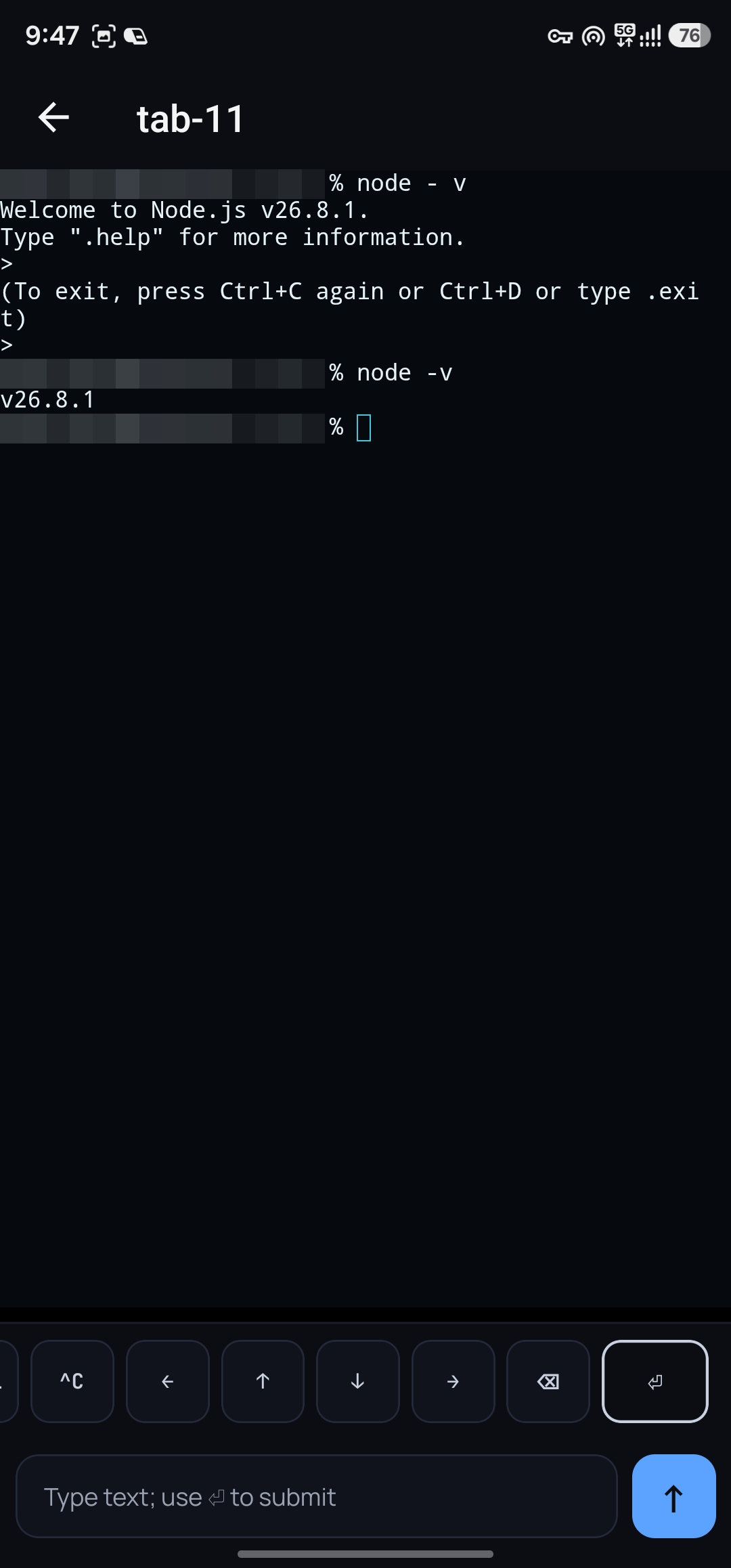
Tapping a session opens its terminal: the same output the laptop shows, rendered by the same terminal engine, with a key bar for Esc, Tab, Shift-Tab, Ctrl, Alt, arrows and Enter. Ctrl and Alt stay lit after a tap and apply to the next key or text you send: Alt then ⌫ deletes a word, Alt then ← moves back one.
Typed text is sent exactly as written and never presses Enter for you; the ⏎ key is the only thing that does.
Nothing you type while the phone is disconnected is sent later — reconnect and type it again.
The phone and the laptop share one terminal size, so whichever one you are looking at sets it; the laptop takes its size back when you return to its Session view.
Finished sessions open read-only. A trimmed-output badge and a dim marker identify output that was dropped. Links in terminal output do not open the browser, and any external session link (other than a pairing link, which opens the pairing screen, or a notification tap, which opens the session) returns to the Dashboard.
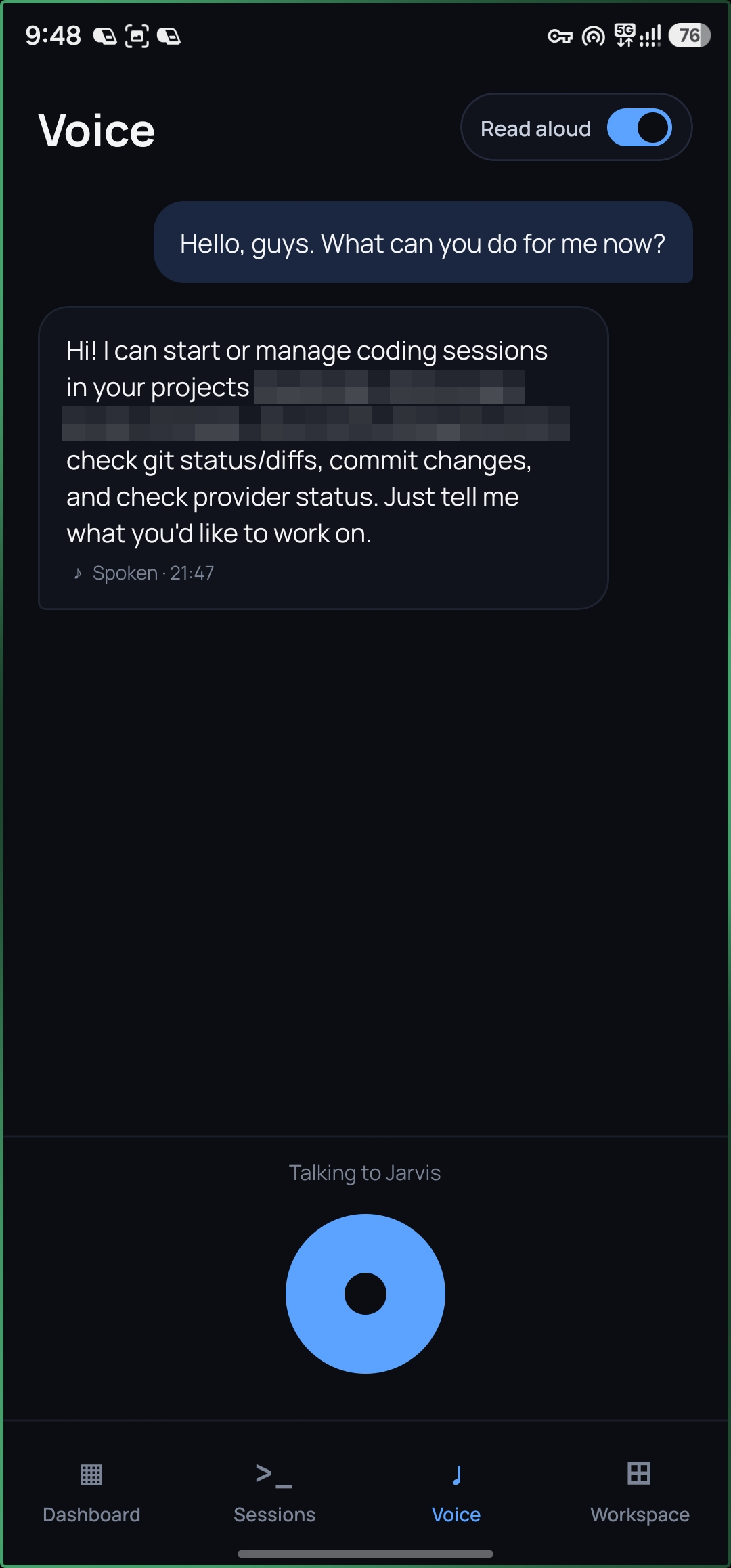
Voice. Tap the mic on the phone, speak, and tap again: the recording is sent to the laptop, transcribed by the same whisper model the laptop uses, and answered by Jarvis — and the reply is spoken by the phone, not the laptop. The laptop stays silent for anything you say or type from the phone; the conversation still appears in the laptop's transcript. The mic on a session's screen types what you said into that agent and presses Enter, exactly as speaking to an open session does on the laptop. A finished session's mic is disabled. A recording that could not be sent is kept on the phone until you tap Retry or Discard; nothing is sent later on its own. Replies are spoken with the phone's own voices; if the phone has no Arabic voice installed, the reply is shown instead. A recording is at most 120 seconds and 4 MiB, and the laptop deletes it as soon as it has been transcribed.
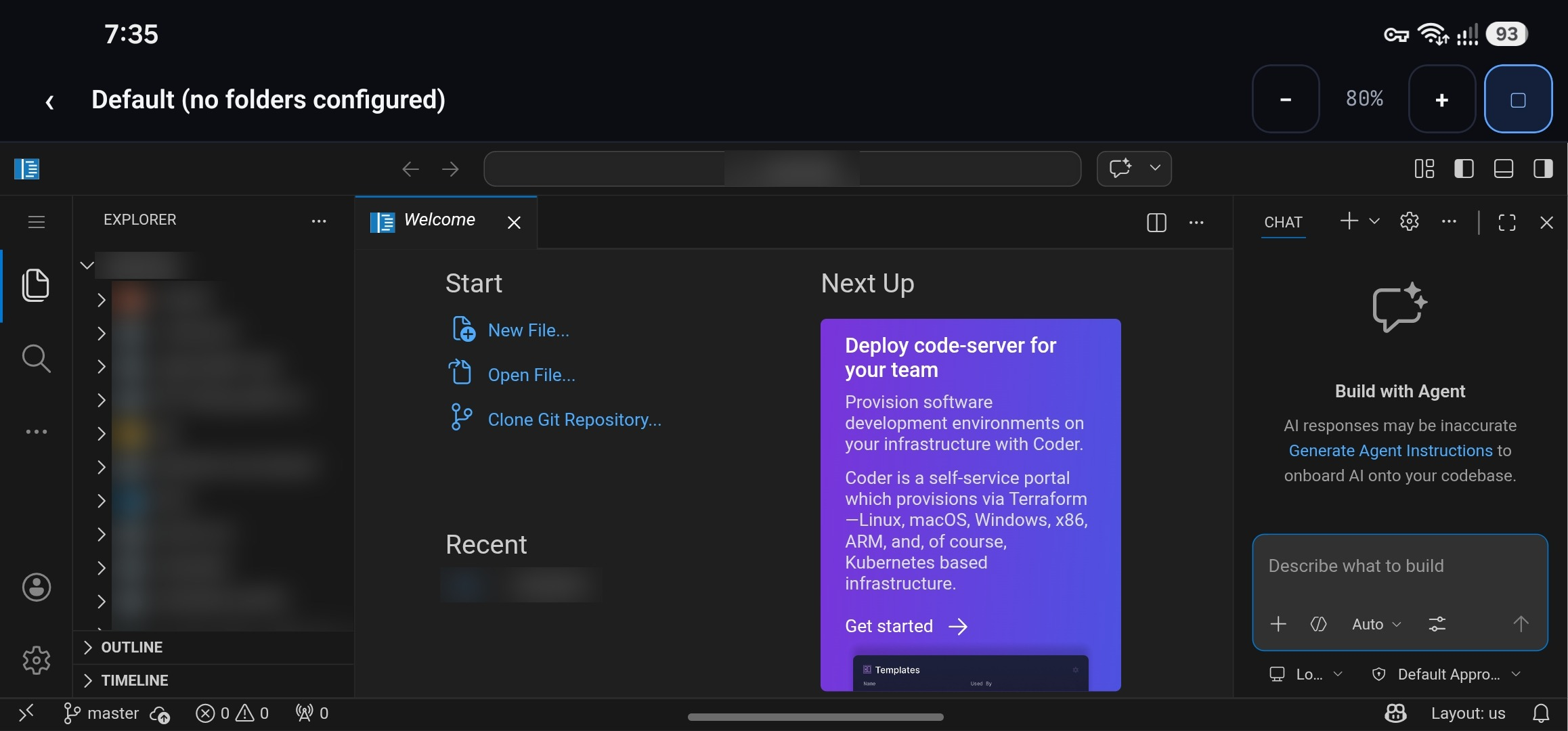
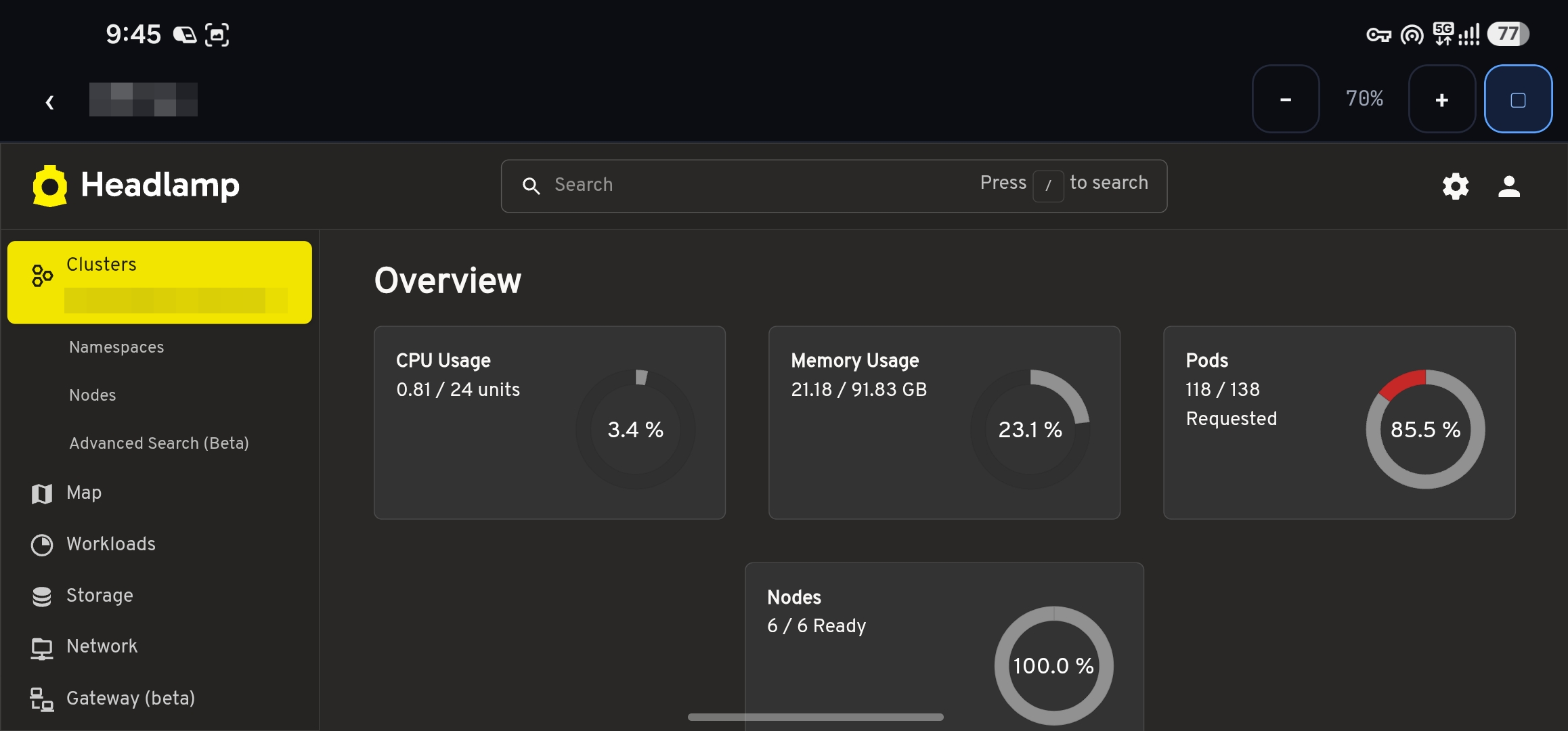
Editor, Database and Cluster, in M11. Tapping a project on the Dashboard opens its sidecars screen: an Editor row per project root, one Database row, and one Cluster row per configured cluster. On path 1 above these open code-server, DbGate or Headlamp in an in-app WebView through the sidecar proxy — typing in a file and a code-server terminal both work, since the proxy pipes WebSocket upgrades through raw as well as ordinary requests. The WebView never navigates off the sidecar's own origin and never opens the system browser; DbGate opens already logged in, because its credential is injected by the proxy rather than typed anywhere. On path 2, the three rows are disabled with a hint to connect over Tailscale with a real certificate, and tapping them makes no request. A Cluster tab needs the cluster already connected on the laptop — opening it from the phone never starts a login flow or an MFA prompt there.
Acting on the laptop from the phone. Beyond reading, the phone can resume a past session (session:resume: it opens a new terminal tab on the laptop running the session's own agent, in the session's own directory, and lands the phone on it), rename or trash a file in a project's file list, and change the laptop's worktree mode. Every one is a mutate channel and is audited on each call. What stays protected: file rename and trash only work inside a configured project root (the root itself is refused, and trash goes to the OS trash, never a hard delete); a settings save from the phone changes only the sessions section and ignores the rest of the request, so it cannot turn the bridge off or change project roots or command paths; testing an agent command and the API client's settings stay on the laptop.
Workspace, Changes, Docker, history and the API client, in M9. The Workspace tab shows the laptop's open tabs grouped by project. A phone can close a tab or rename it (an 80-character title, no control characters), but never opens, moves or activates one on the laptop's screen — those stay on the laptop. Tapping into an open Terminal tab attaches to one of its existing panes (never creates or splits one) with the same terminal engine and key bar Sessions uses; a web or chat tab's row hands off to the system browser, behind the same URL safety check every external link on the phone goes through (an unresolvable or unsafe URL shows a notice instead of opening anything); an Editor, Database or Cluster tab's row links to the sidecar screens described above; a Docker or API tab's row opens the phone's own Docker or API screen, described next. A terminal on the phone keeps its plan in a strip above the keys — how far along it is and the step it is on — and tapping it opens the plan. Previous command and Next command jump between the prompts the laptop's shell marks, Latest returns to the live end once you have scrolled back, the search button finds text in the output, and the arrow-pad button opens a pad you drag a thumb across to send arrow keys. The Changes tab shows a session's git status — staged and unstaged files, a diff per file — and lets you stage, unstage and commit from the phone. It also shows where the branch stands against its remote (origin/main ↑2 ↓1) with Pull, Push and Pull request, lets you switch to another local branch or create one, and — for a session running in a worktree of its own — merge that worktree back or remove it. A pull request's address opens in the phone's browser. It refreshes on its own whenever the laptop's own file counts change, so it never shows a stale "clean" tree after a commit made elsewhere. The Docker tab lists a project's configured containers and their state, with start, stop, restart and compose up/down actions; it can live-follow one container's logs at a time (a device may hold at most four followers at once) — a live log is not durable history, so reconnecting after a drop inserts a plain marker for whatever was missed rather than pretending nothing was; the shell into a container stays laptop-only. The History tab lists every session, finished or not, and its transcript, read-only. The API client is reachable from the phone with the same collections, requests and environments the laptop sees; sending and saving work the same way, except a remote send never runs a request's pre-request/post-response scripts or an OAuth2 grant, and a multipart file field is never read from a path on the laptop — a file picked on the phone is uploaded first and the request refers to it by the id that upload returns. A remote save drops the same things a remote send skips. Importing a Postman collection from the phone goes through the same upload step, and that import alone is bounded — a cap on how many requests it may produce, a decoded size/depth/node-count check, and a scan for control characters in the names and values the conversion produces — bounds a Postman import triggered from the laptop's own file picker does not carry at all.
Notifications, in M10. Notifications are off until you turn them on in two places: the laptop's Settings → Remote access → push notifications, and the phone's Settings → Notifications. A notification says only what kind of thing happened — an agent finished, failed or is waiting for you; a long command ended; Jarvis answered — and, if you set remote.push.includeProjectNames: true, which project. It never carries terminal output, a command, a file path, an agent's words or a transcript, because it travels through Apple's or Google's notification service via Expo's push API. Nothing is sent while the Jarvis window is focused on the laptop, or while the phone is already showing the session or reply in question. Tapping a notification opens the app; it goes to the session only if that session is still in the laptop's list. The laptop holds no Apple or Google credential of its own — Expo's push service is the only third party in this path, and the credentials that authorize it to reach Apple and Google are configured once, on EAS, not in this repository (see apps/mobile/README.md's "Push credentials").
A phone in the background stops watching at once, so a notification is not held back until the connection times out.
Certificate pinning. On a pinned (path 2) pairing, the phone trusts exactly one certificate: the one whose fingerprint was in the QR you scanned. If the laptop's certificate changes, the phone refuses to connect and shows the mismatch banner described below. A system-trust (path 1) pairing pins nothing — it trusts the certificate's name through the phone's own OS trust store, which is what lets a tailscale cert renewal go through with no re-pair.
A certificate that stops matching after pairing — the laptop's key pair was regenerated, or (for a phone paired before M11 against a tailscale cert certificate with no name in its link) a renewal rotated it — seen the next time the phone tries to connect, is handled differently from a certificate that never matched: the phone does not unpair itself just because one connection attempt hit a mismatch. Doing that would let anyone on the same network force a re-pair by presenting a different certificate. Instead it keeps retrying with backoff and shows a banner explaining that this device's saved certificate doesn't match, with a "Pair again" button.
Revocation. Revoking a device from the laptop's Settings closes its connection immediately; the phone forgets its token and returns to the pairing screen. Revocation is total: it also destroys that device's live sidecar connections, not just its handles — an Editor or Database tab open on the phone at that moment stops immediately, mid-stream, because its underlying socket is cut, not merely on its next navigation. If clearing the stored pairing on the phone itself fails (a keychain error), the pairing screen shows a distinct "couldn't remove the old pairing" state with a Retry button, rather than looping back to a Dashboard that can no longer authenticate.
Unpairing from the phone (Settings → Unpair this phone) only removes the phone's own keychain entries; it does not revoke anything on the laptop. The laptop keeps the device listed, with a valid token, until it is removed there too — the phone's confirmation dialog says so.
Language and RTL. The phone's language is its own setting (defaulting to the device locale) and is not part of the pairing record. Changing it in Settings asks you to restart the app — real right-to-left layout is applied process-wide at startup, so it cannot take effect until the app restarts.
The browser client
The phone app also runs in a web browser, on another computer or on a phone without the app installed. It is the same app, built for the web and shipped inside Jarvis. The laptop serves it from a second listener beside the bridge, so there is nothing else to install or host.
What it needs. All three of these:
- Tailscale with a real certificate — path 1 above. A browser can only trust a certificate through its own trust store, so a self-signed, pinned certificate cannot work. The certificate needs a DNS name, as in the
tailscale certwalkthrough or Sidecars over Tailscale, from Settings. The device running the browser needs Tailscale with MagicDNS too, to resolve that name, andremote.bindAddressmust be an address it can reach, normally the Tailscale one. - An owner password. The bridge does not start without one anyway.
- Browser access turned on: the Browser access switch in Settings → Remote access, which is
remote.web.enabledinjarvis.yaml(see configuration). It is off by default.
The browser listener runs only while the bridge itself is listening (a device is paired, or a pairing window is open). It binds the same address with the same certificate and TLS 1.3, on its own port: remote.web.port, or the bridge's port plus one (7718 by default). Settings shows a state line under the switch: On, Off (browser access or the bridge is off), or why the listener cannot run — the two ports are the same, the port could not be opened ("Another program may be using it"), there is no real certificate, there is no owner password, or "The browser version is not included in this build".
Opening it and pairing. When the listener is on, Settings shows its address (https://<name>:<port>/), an Open in browser button and a QR code. A browser pairs the same way a phone does, with a pairing window open:
- While a pairing window is open, the address, the button and the QR carry the pairing link:
https://<name>:<port>/pair#<the pairing code>. Scan the QR with a phone's camera, or open the address on the other computer. Open in browser opens it in this laptop's own default browser. - Or open
https://<name>:<port>/pairand paste the pairing link text (either thehttps://…/pair#…form or thejarvis://pair?…one).
The pairing code travels after the #, so the browser never sends it to the laptop as part of the page request, and the page removes it from the address bar and the history once read. The page then shows the same confirmation step as the phone, with a device name taken from the browser (for example "Chrome · macOS"), which you can edit. Approving the laptop's dialog finishes it. The device is listed in Settings with a Browser label; phones are labelled App. A pairing link without a certificate name is refused in a browser: "Browser access needs Tailscale with a real certificate."
Signing in. After pairing, the browser shows the unlock screen, which signs in with the owner password or a passkey. Right after the first password sign-in it offers "Add a passkey for this browser", which asks for the password again. Settings → Passkeys, shown only in a browser, adds one later. A passkey signs in with Face ID, Touch ID, Windows Hello or a phone instead of the password. When this browser can verify you itself and at least one passkey exists, opening Jarvis raises the passkey prompt on its own, once per page load. The password is always there as a fallback.
Keep me signed in on this browser is a switch on the unlock screen and in Settings, and it is off by default:
- Off: nothing that can sign in is stored. Every visit needs a passkey or the password.
- On: the refresh token is stored in this browser, so opening Jarvis signs you in without asking. The token stops working after 7 days without use, and 30 days after the password or passkey sign-in, the same as on the phone. It is used only for that sign-in when the page opens: after the idle lock, or after you log out, you need a passkey or the password again, even with the switch on. A browser has no Face ID prompt standing in front of the stored token the way the phone does, so the idle lock would mean nothing otherwise.
Turning the switch off deletes the stored token at once. The pairing record and the device token are always kept in the browser's IndexedDB, encrypted with AES-GCM under a key the page cannot export. That keeps the raw values out of the database, but it does not protect against someone who can use this browser profile. That person still needs the owner password or a passkey, unless keep-signed-in is on. The access token is kept in memory only, as on the phone, and the idle lock (Settings → Security) works the same way.
What works, and what does not. The Dashboard, Sessions, terminals, Workspace, Changes, Docker, History, the API client and voice all work through the same /rpc connection the phone uses. The differences:
- No notifications. A browser cannot register for push, so Settings reports notifications as unavailable.
- No QR scanning. Pairing takes the link, as above, not the camera.
- Editor, Database and Cluster open in a new tab on the bridge's own address (
https://<name>:<bridge port>/s/<handle>/…), through the same sidecar proxy, with the sameremote.sidecarProxyrequirement. The app shows "Opened in a new tab." with an Open again button. - Voice records with the browser's own recorder. It uses MP4 audio where the browser supports it and WebM/Opus otherwise; the laptop accepts either, checks the file's actual contents against the format it was sent as, and refuses a mismatch. The 120-second and 4 MiB limits are the same. Replies are spoken with the browser's own voices, or shown as text when it has none for the language.
- The terminal is the same terminal page the phone uses. It runs in a sandboxed frame (
/terminal.html) that can only exchange messages with the app. - Log out and Unpair in Settings ask with the browser's own confirmation dialog.
Phone and tablet/desktop layouts. The browser client, and the app on an iPad or Android tablet, chooses its layout from the window size. The layout changes on resize or rotation, and nothing reloads.
Phone layout. It is used when the window's shorter side is under 600 points or its width is under 744. This is the phone app as it is: a bottom tab bar, full-screen pages, and a session or terminal that opens on its own screen.
Tablet/desktop layout. It is used when the shorter side is at least 600 and the width at least 744. For example, a laptop browser window, an iPad either way round (744 is the iPad mini's width in portrait), or an Android tablet. It has a top bar like the desktop app's, with the brand, Dashboard, Sessions, Workspace, Voice and Settings. The bar also shows the laptop's CPU, RAM, disk and network, the connection state and the laptop's name, the number of running sessions, and a clock. Below 900 points wide, for example an iPad in portrait, the system readout is hidden. The screens:
- Dashboard: System, Sessions and Projects panels side by side. There are three columns from 1100 points wide, and two below that.
- Sessions: the list on one side and the selected session on the other. The session is in the address as
/sessions?id=<id>, so it survives a reload or a rotation. A/session/<id>link opens this split view. - Workspace: the project's tabs as a strip, with a terminal, Changes, Docker or the API client open inline under it. A web or chat tab, and Editor, Database and Cluster, open as they do on the phone: in a new browser tab in a browser.
- Settings: a section list beside the settings. Choosing a section scrolls to it.
- Voice sits in a centred panel. History, a transcript, Docker, the API client and Changes open in a centred panel under the top bar, with their own Back button. Unlock and pairing are a centred card, which scrolls when it is taller than the window.
In Arabic, the top bar, the split views and the Settings section list are mirrored. Rotating an iPad, or resizing across the breakpoint, keeps the same session or terminal open with no second connection to it. A phone that inherits a selection this way shows it with a back link (All sessions or All tabs). On Android, the hardware Back button does the same.
Known limitation: in the native iPad app, a hardware keyboard cannot type into the terminal. Use the key bar and the compose bar under it. In a browser, the hardware keyboard types into the terminal directly.
Revocation and signing out behave as on the phone. Revoking the browser from the laptop's Settings closes its connection. The browser then forgets its records and returns to the pairing screen. Every trigger in the "What signs devices out" table above applies to a browser too. Log out ends this browser's sign-in and deletes its stored token, and keeps the pairing. Unpair removes only what this browser stores; the laptop keeps the device listed until you revoke it there. A browser that is connected counts as a connected device for idle auto-disable.
Why a separate port. The sidecar tabs are third-party pages (code-server, DbGate, Headlamp) served on the bridge's own origin, https://<name>:<bridge port>. A browser treats a different port as a different origin, so serving the app from its own port keeps those pages away from the app: they cannot read its storage, and their origin is not one the bridge accepts on /rpc or /pair. The browser listener serves only the app's own files. It cannot reach sessions or the sidecars itself; the app talks to the laptop over the bridge's /rpc, the same as the phone.
Security rules on the browser listener. Every response the listener does not want to give is a closed connection with no bytes at all, the same "no banner to an unauthenticated peer" rule the bridge follows:
Host must be exactly
<name>:<port>(just<name>on port 443). A missing, repeated, IP-address or otherwise different Host is refused.Methods: only
GETandHEAD. Any request carrying anUpgradeheader, anExpectheader, or a malformed or traversal path (.., a backslash or NUL, whether literal or percent-encoded) is refused. An unknown path that looks like a file is refused. Any other unknown path gets the app'sindex.html, because the app does its own routing.Headers: every response carries
X-Content-Type-Options: nosniff,Referrer-Policy: no-referrerand this Content-Security-Policy:default-src 'self'; script-src 'self'; connect-src wss://<name>:<bridge port>; img-src 'self' data: blob:; media-src 'self' blob:; style-src 'self' 'unsafe-inline'; frame-src 'self'; frame-ancestors 'none'; base-uri 'none'; form-action 'none'No inline script is allowed; the build fails if an exported page has one. The page can connect only to the bridge.
/terminal.htmlalone saysframe-ancestors 'self', so the app can frame its own terminal page. Nothing else can be framed at all.
Origin rules on the bridge. The bridge checks the Origin header of every /rpc and /pair WebSocket upgrade and destroys the connection, unanswered, unless the header is:
- absent,
- exactly
jarvis-app://native, which the phone app sends, or - exactly the browser listener's origin,
https://<name>:<port>, and only while that listener is running.
The comparison is exact: no case folding and no trailing slash. A web page cannot forge a non-https Origin, and the bridge's own origin is never accepted, because the sidecar pages run there. Once browser access is turned off, no browser can open a new connection to the bridge. Sidecar requests under /s/ are not subject to this check; they have their own single-use key and cookie.