
Jarvis
A desktop workspace for running coding agents by voice, and for doing the work around them without leaving it: the project's files, its databases, a shell in it, and its APIs.
Jarvis is a single Electron app over a pnpm workspace. It runs on macOS, Linux and Windows. It speaks Arabic and English, and it is built for one person on one machine — there is no server, no account, and nothing leaves the laptop that was not already going to, apart from a daily update check to GitHub. It opens full screen.
Everything in the Workspace belongs to a project, except the Personal browser, which belongs to none: somewhere to keep tabs that are not work, with its own logins and its own bookmarks.
⌥Space            talk to the brain, or to the session you are looking at
Dashboard         what every agent is doing, and what the machine is doing
Changes           the working tree, staged and committed from here
Session           one agent's real terminal
Workspace         a browser, an editor, a database client, a shell, an API client, a cluster browser
Settings          everything jarvis.yaml holds, edited in place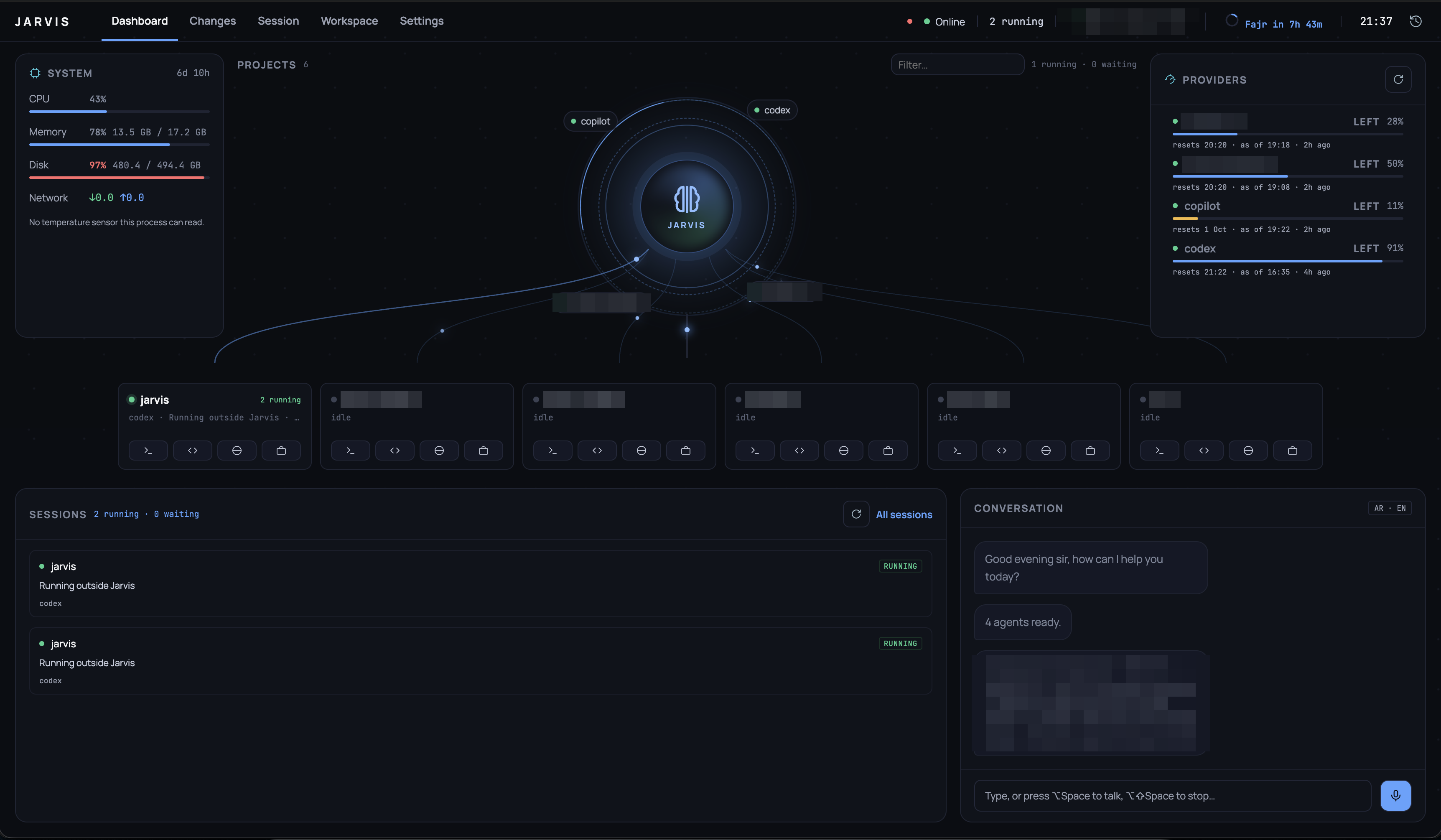
The Dashboard. Project names, provider accounts and capacity figures are blurred — everything else is the running app.
What it does
Runs the agents. Each agent is a real process under a real pty, not an API call — its terminal is the terminal, and the Session route shows exactly what it drew. The Dashboard reports what every one of them is doing at once, beside what the machine has left to give them, and how much capacity each provider account has before it resets.
Listens. ⌥Space talks to the brain, which resolves what you said against the projects and sessions that actually exist, so "افتح متجر أكمي" reaches a project keyed acme. Speak to a session instead and the words go to that agent's stdin.
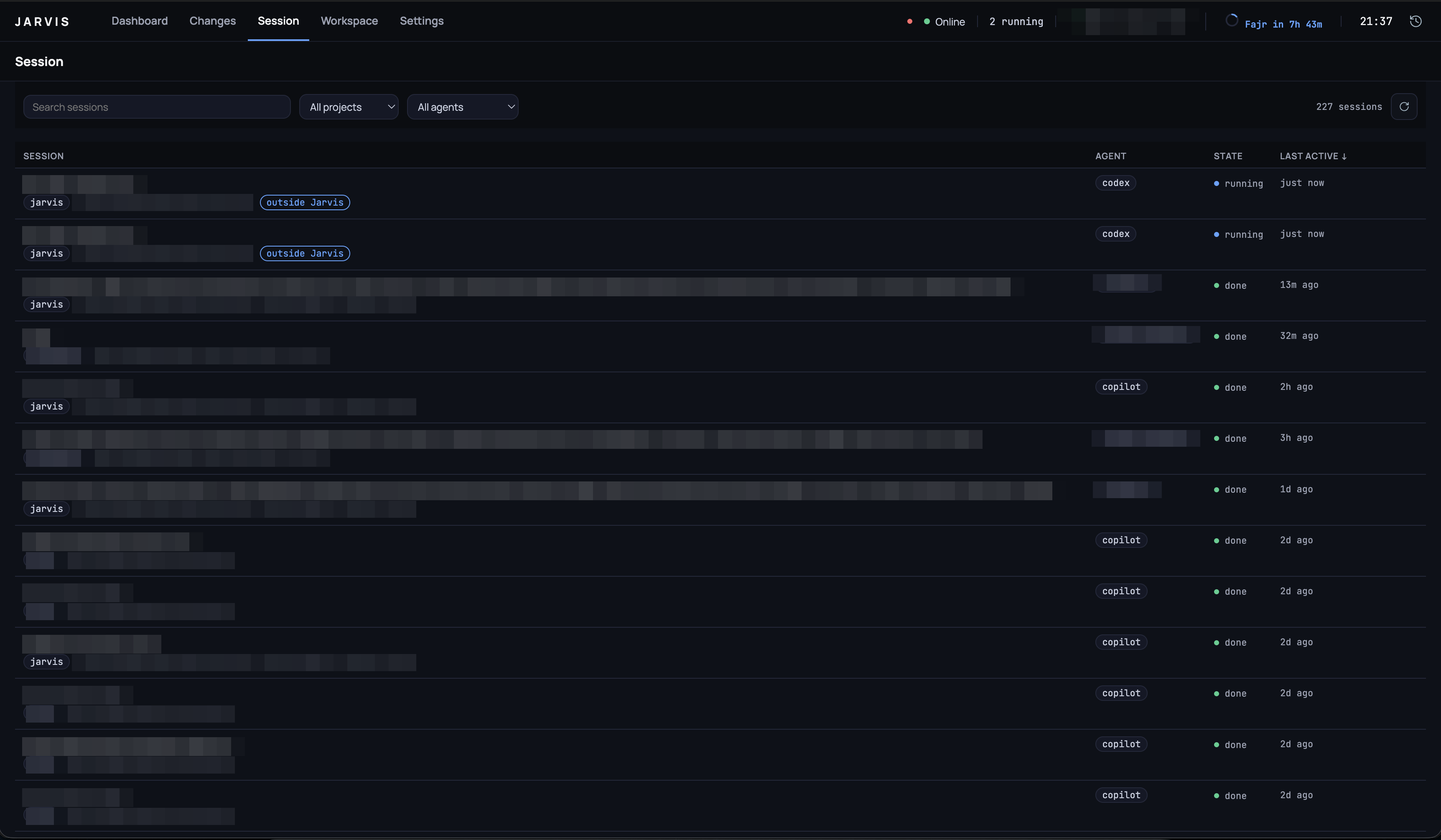
Every session Jarvis has ever run, across every project. Prompts, project names and agent accounts are blurred — the table, the states and the timestamps are the running app.
Comes with you. A companion phone app pairs with the desktop over your local network or a Tailscale tailnet: sessions, terminals, changes, and the Editor / Database / Cluster tabs, from the phone, over one authenticated TLS connection that is off by default. Every device signs in with an owner login (a password set on the laptop, or a passkey in a browser) before it can see anything. The same app also runs in a browser on another computer, served by the laptop itself, and on a tablet or a wide browser window it switches to a desktop-style layout with a top bar and split views. See Remote access.
Keeps running in the background. Turn it on and the terminals, agent runs and remote access live in jarvisd, a background daemon installed as a login item, so they survive quitting the app and a phone can still reach them. See Background daemon.
Keeps the work in one window. The Workspace opens a project's files in an editor, its tables in a database client, its endpoints in an API client, its cluster in a browser, and a shell rooted where the project is — each as an ordinary tab beside the others.
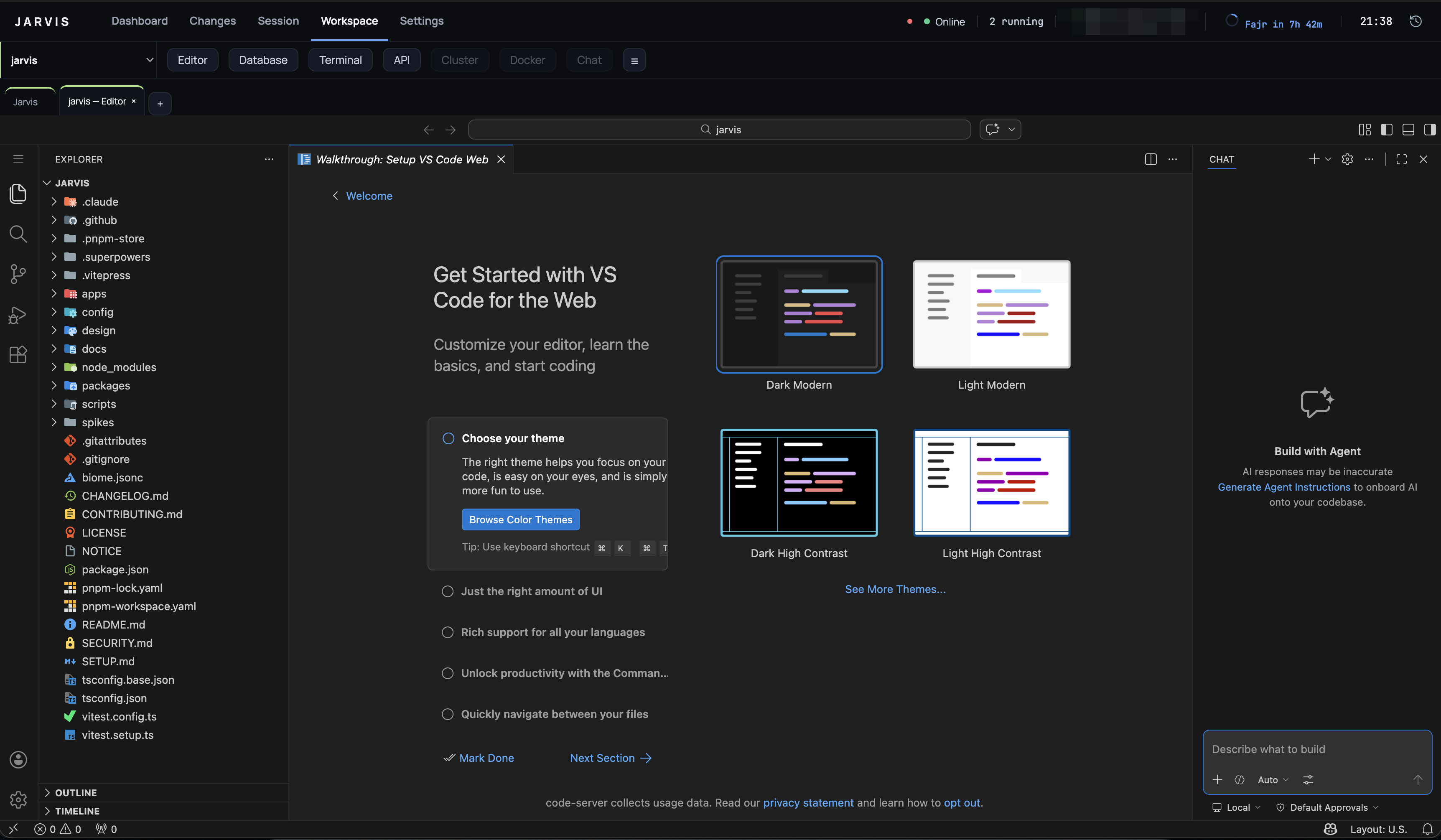
The Editor tab — code-server, in the window, on the project Jarvis is pointed at.
The Terminal tab is Warp-shaped. Each command and its output become an addressable block you can collapse, copy, re-run or filter to the ones that failed; a real editor sits at the prompt with history-ranked completion; the pane splits; ⌘P reaches every action. A file sidebar follows the shell as it cds, and a row of chips above the input names the directory, the branch and what is uncommitted. Re-run, workflows, history and the AI's suggestion all fill the line — you press Enter yourself, always. When Claude Code writes a plan, it opens beside the terminal: edit a section in place, pin comments to it, and send them all back as one message (the plan panel).
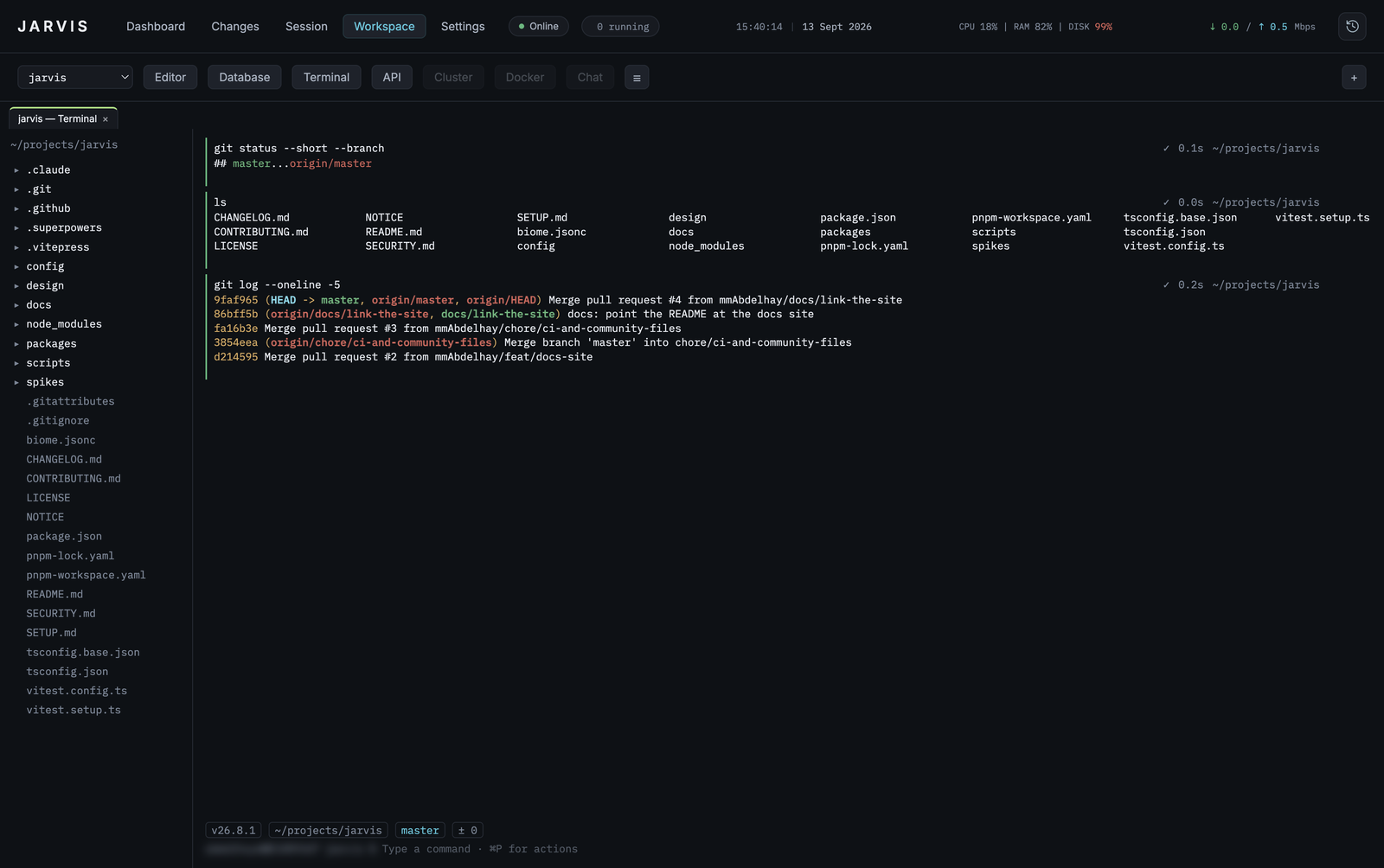
The Terminal tab. Each block carries its own exit state, duration and working directory; the chips under the prompt name the Node version, the directory, the branch and what is uncommitted.
Getting started
Install the built app
macOS — grab the .dmg from the releases page, open it, and drag Jarvis to Applications. Two things are worth knowing before you do:
- Apple Silicon only. The build is arm64; an Intel Mac cannot run it.
- It is not signed by an identified developer, so the first launch is refused with a warning that macOS cannot check it for malware. Open System Settings → Privacy & Security and press Open Anyway, or run
xattr -dr com.apple.quarantine /Applications/Jarvis.app. This is what ad-hoc signing costs; nothing about the app changes either way.
Android phone (optional) — grab jarvis-mobile-<version>.apk from the same releases page, install it on the phone, and pair from Settings → Remote access on the desktop (how).
Linux — grab the .AppImage, make it executable, and run it. There is nothing to install and no package manager involved:
chmod +x Jarvis-*.AppImage
./Jarvis-*.AppImage
Windows — grab the .zip, unpack it anywhere, and run Jarvis.exe. The whole folder is the app; keep it together. There is no installer, which is also why there is no SmartScreen prompt to click past — but the executable is not Authenticode-signed either, so Windows may still ask once.
The Terminal tab runs PowerShell there, and the app's own chords are Ctrl+Shift rather than ⌘ — the same spelling Linux uses. If another app holds Alt+Space (PowerToys Run does, by default), Jarvis says so at startup and uses Ctrl+Shift+Space instead; every hint in the app then names that.
- x64 only. arm64 needs an arm64 machine to build on; there isn't one yet.
- Ubuntu 22.04 and later need
libfuse2(sudo apt install libfuse2t64), which is what mounts an AppImage. Without it,./Jarvis-*.AppImage --appimage-extract-and-runworks instead. - Voice needs
ffmpegand a player — see installation. Everything else works without them.
Jarvis writes ~/.config/jarvis/jarvis.yaml on first run and opens with it, so there is nothing to set up before the first launch. It also shows a setup screen naming the external tools it can use, what each unlocks, and whether you have it — installing the ones you tick. Nothing installs until you press the button, and nothing needing root is ever run: those are shown as a command to copy. It will report the agent it cannot find until you install one — see installation for the external tools each Workspace tab wants, all of them optional except the agent CLI itself.
Or run it from source
New machine? SETUP.md walks the whole thing, start to finish.
pnpm install
pnpm bootstrap                           # fetches Electron, builds node-pty
pnpm --filter @jarvis/desktop start      # builds, then opens the app
pnpm --filter @jarvis/desktop package    # builds for whichever platform this is
pnpm bootstrap is not optional and is not a convenience. This workspace runs with install scripts disabled on purpose, which leaves two things undone that the app cannot run without: the Electron binary is never downloaded, and node-pty's native binding is never built. node-pty ships no Linux prebuild at all, so on Linux that second step is a compile and wants build-essential and python3. Run it once after every pnpm install.
Each platform is packaged on itself — --linux from a Mac would wrap a darwin Electron in a Linux bundle without complaining, and node-pty's binding has to be compiled by the machine that ships it.
Configuration lives at ~/.config/jarvis/jarvis.yaml. Jarvis writes a starting one on first run, reads it at startup, and the Settings route writes it back. See the configuration guide for what every key does, and installation for the handful of external tools each Workspace tab needs.
Documentation
All of it is also a site, with search across every page: mmabdelhay.github.io/jarvis. The same files, rendered — so the links below work whether you read them here or there.
Using it
- Setup — a new machine, start to finish
- Installation — prerequisites, first run, what each optional tool unlocks
- Configuration — every key of
jarvis.yaml, with worked examples - The routes — Dashboard, Changes, Session, Workspace, Settings
- Workspace tabs — browser, Editor, Database, Terminal, API
- The API client — collections, environments, scripts, auth, cookies
- Remote access — pairing the phone app, Tailscale, certificates, the audit log
- Background daemon — keep Jarvis running after the app quits, the
jarvisdcommand - Troubleshooting — what breaks, and what it means
Working on it
- Architecture — the four packages and what may import what
- Conventions — the rules this codebase enforces, and why each exists
- Testing — what is tested where, and what tests cannot see
- Adding a Workspace tab — the pattern, end to end
- Contributing — what CI checks, and how a change is expected to arrive
- Security — what is in scope, and where to report privately
- Changelog — what each release changed
Commands
pnpm lint | Biome: formatting and rules, warnings included |
pnpm lint:fix | apply everything Biome can fix itself |
pnpm test | the whole suite |
pnpm typecheck | tsc -b across the workspace |
pnpm bootstrap | fetch the Electron binary, build node-pty |
pnpm prereqs | report the external tools; --all installs them |
pnpm --filter @jarvis/desktop build | compile and copy vendored assets |
pnpm --filter @jarvis/desktop start | build, then run |
pnpm --filter @jarvis/desktop package | package for this platform |
The build step matters: the renderer's vendored libraries and the app icon are copied into dist/ by a script, not by tsc. Running tsc alone leaves them stale.
How it is built
Four packages, and the rule that keeps them apart: core holds the logic and imports nothing from the others; platform owns everything that touches the machine — processes, ptys, git, the filesystem; remote is the remote bridge's transport and imports only core; desktop is Electron's main process and the renderer, and it is the only one allowed to know about the others. Architecture states what may import what and why the boundary is worth having.
Almost 2,900 tests run in a few seconds because the parts that hold the logic take their I/O injected: a splitter that cuts a pty stream into blocks is a pure function over chunks, a completion engine is a pure function over history, and the code that spawns and reads is small and separate. What tests cannot see — how it looks, whether a terminal reflows, whether a real shell behaves — is written down in testing rather than assumed.
Features arrive by the same route each time: a design argues for the shape, a plan breaks it into reviewable pieces, and each piece is written test-first and read by a fresh reviewer before the next begins.
What it exposes
Jarvis is built for one person on one machine, and most of it touches no network at all. Seven things are worth knowing before you run it somewhere shared.
The Database tab is reachable from your network while it is open. DbGate always listens on 0.0.0.0 and offers no bind-address option, so an open Database tab is reachable from any machine that can reach yours. It is guarded by a per-spawn random password — the desktop's own Database tab now logs itself in with it automatically (BASIC_AUTH=1, answered through Electron's login event), so the password no longer needs to be read off the status line there, but it is still the only thing standing between your databases and everyone else on the network: the instance still binds every interface and stops only when the tab closes. On a café or office network, that password is the whole of your protection.
The Editor tab runs without authentication, on loopback only.code-server is started with --auth none bound to 127.0.0.1, so nothing outside this machine's own processes can reach it — except through the sidecar proxy below, which fronts it with a per-device cookie for a paired phone.
Agents run as you. Every session is a real process under a real pty with your environment, your PATH and your credentials — that is what the app is for, and it is worth saying out loud. Jarvis adds no sandbox of its own.
The mobile remote bridge is off by default, and reachable only on purpose. It never listens unless remote.enabled is turned on and either a device is already paired or a pairing window is open, and only on the one address remote.bindAddress names (loopback by default) — never every interface unless you explicitly configure that. When it does listen, it speaks TLS 1.3 to a certificate the phone pins, or, with a named certificate, trusts by name on first pairing, and pairing itself needs a second step on this machine: a confirmation dialog naming the requesting device, which you approve or deny. Pairing alone opens nothing: every connection starts locked until the device signs in with the owner password (or, in a browser, a passkey registered while signed in); the password is set only on this machine, and without it the bridge does not start. Sign-ins are short-lived tokens with brute-force limits, and changing the password or clicking Sign out everywhere ends them all (see Remote access). Once paired and signed in, that phone can run commands on this machine as you, exactly like an agent session — see "Agents run as you" above — so treat a paired phone the way you would treat a second person with your terminal. With the laptop's self-signed default certificate, or a configured certificate with no DNS name, the phone pins that exact certificate at pairing time; a key-pair regeneration changes the fingerprint and every phone paired that way has to pair again. With a configured certificate that carries a DNS name (remote.tls.certPath/keyPath, e.g. from tailscale cert), the pairing link carries that name instead, and the phone trusts it through the OS's own trust store rather than pinning it — a renewal under the same name needs only a bridge restart (Off/On, or restart Jarvis), no re-pairing. Once paired, the phone can also watch terminal and agent output live, and a slow phone gets output dropped (and marked) rather than slowing the laptop. The Dashboard's topbar shows a persistent indicator whenever the bridge is actually listening, and any paired device can be revoked from Settings → Remote access — this also cuts any of that device's sidecar tabs it had open, not just its main connection. A companion phone app lives in apps/mobile; once paired it shows the laptop's projects, live system metrics and running sessions, and can type into a running agent's terminal. A paired phone can also send voice recordings of up to 4 MiB, which the laptop decodes with ffmpeg in a private temporary folder and deletes as soon as they are transcribed. With push notifications turned on at both ends, the laptop sends short generic notifications (kind of event and, optionally, the project name — never output, commands or paths) through Expo's push service to the paired phone.
Left alone with no phone connected, the bridge can switch itself off after a configurable idle time and says so in Settings.
The sidecar proxy lets a phone paired with a named certificate open the Editor, Database and Cluster tabs too, cookie-scoped and per device. With remote.sidecarProxy on and a configured certificate carrying a DNS name, opening one of those tabs from the phone gets it a one-time URL under /s/<a random handle>/… — never the sidecar's own port — authenticated after that by an HttpOnly; Secure; SameSite=Strict cookie scoped to that handle. A handle lives at most 24 hours and at most 8 at a time per device, and every one of a device's handles (and its live sidecar connections, mid- stream) is destroyed the moment that device is revoked. See Remote access for the three ways a pairing can be reached and the tailscale cert walkthrough, and Security for what is in scope.
Browser access is a second listener, off by default, on its own port. With remote.web.enabled on, a configured certificate with a DNS name and an owner password, the laptop also serves the phone app as a web app, so a browser on another paired device can use Jarvis. It listens only while the bridge does, on the same address with the same certificate and TLS 1.3, on remote.web.port (the bridge's port plus one by default). It serves only the app's own static files: GET and HEAD with the exact expected Host, under a strict Content-Security-Policy, and every other request gets a closed connection with no reply. It has its own port because a browser treats each port as a separate origin. The sidecar pages run on the bridge's origin, so they cannot read the web app's storage, and the bridge accepts /rpc and /pair connections only from the web app's origin, from the phone app (Origin: jarvis-app://native), or with no Origin at all. A browser pairs and signs in like a phone, and can also use a passkey. On a tablet or a wide browser window the app switches to a desktop-style layout; that changes only how it is drawn, not what it can reach or the checks it passes. See the browser client.
The background daemon's control socket is local only, and it is owner-level access. With Keep Jarvis running in the background on (off by default), the terminals, agent runs and remote access live in jarvisd, which keeps running after the app quits. The app and the jarvisd command drive it through a control socket (a named pipe on Windows) that listens on no network, only in ~/.config/jarvis/run. That directory is 0700 and the socket and secret 0600 on macOS and Linux; on Windows they sit in your user profile and the pipe name is random at every start. A client has to prove it knows the secret in that directory through a mutual HMAC challenge, and the secret itself is never sent. Once in, it can do what Settings does: set the owner password, approve pairings, revoke devices, open terminals. It is not asked for the owner password, so anything running as you can administer Jarvis. See Background daemon.
Licence
MIT. Third-party components keep their own licences — NOTICE names the one that matters most, and architecture has the rest.